# Customizing Scheduler booking flows
Source: https://developer.nylas.com/docs/v3/scheduler/customize-booking-flows/
By default, Scheduler follows the **standard booking flow** when a guest creates a booking. You can customize the flow to add or skip steps.
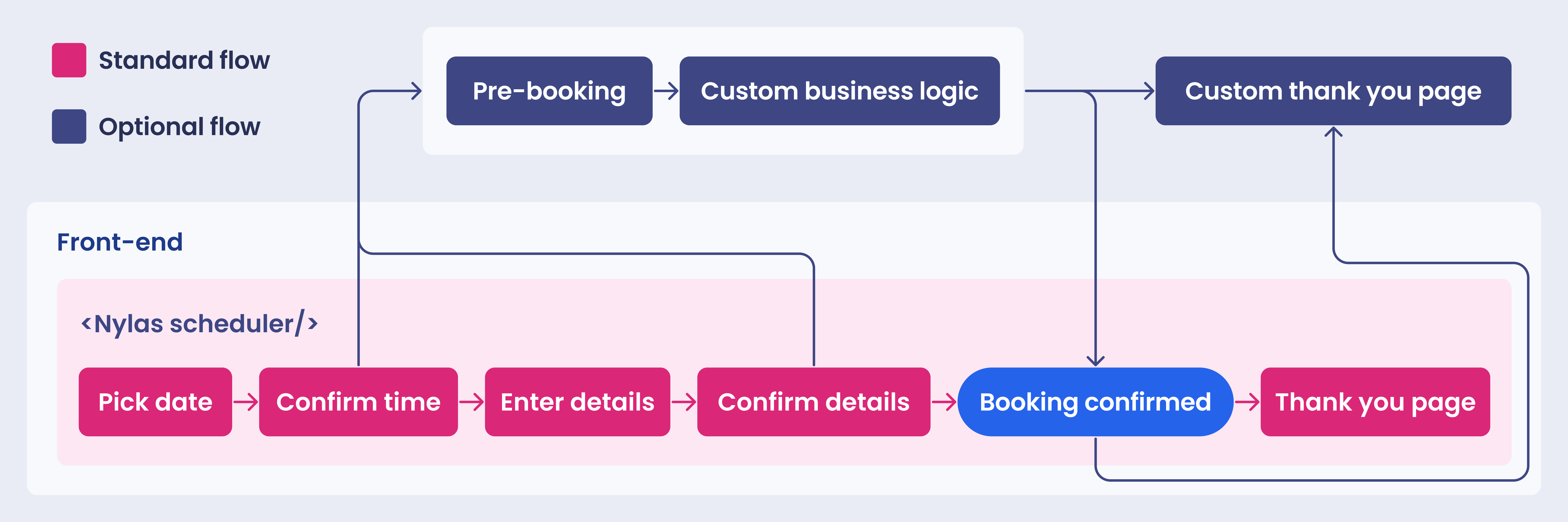
## Set up pre-booking
You can use pre-bookings to pause the booking flow until the specified action is completed. When you set up a pre-booking, Scheduler adds a placeholder event to the organizer's calendar, and Scheduler finalizes the booking only when the specified action is completed.
> **Info:**
> **Currently, Scheduler supports `organizer-confirmation` pre-bookings only**.
### Set up organizer-confirmed booking
When you set the `booking-type` to `organizer-confirmation` and a guest books an event, Scheduler creates a placeholder event marked `[PENDING]` on the organizer's calendar, and sends an email notification with a confirmation link. When the organizer clicks the link, they're redirected to the confirmation request page, where they can either accept or reject the pre-booking.
If the organizer accepts the pre-booking, Scheduler makes a [Confirm Booking request](/docs/reference/api/bookings/put-bookings-id/) to confirm the booking, and replaces the placeholder event with the actual booking. Scheduler also sends the guest a booking confirmation notification.
If the organizer rejects the pre-booking, Scheduler makes a [Confirm Booking request](/docs/reference/api/bookings/put-bookings-id/) to cancel the booking, and removes the placeholder event from their calendar.
To set up organizer-confirmed bookings, you need to [create a confirmation request page](#create-confirmation-request-page) and [add its URL to your Configuration](#add-confirmation-request-page-url-to-configuration).
#### Create confirmation request page
To create a confirmation request page, add `organizerConfirmationBookingRef` to the Scheduling Component and set it to the booking reference for the pre-booking.
```tsx
;
```
> **Success:**
> **You can find the booking reference in multiple places:** in the rescheduling or cancellation page URL, or in the notifications you receive when you subscribe to the [Scheduler notification triggers](/docs/reference/notifications/#scheduler-notifications).
#### Add confirmation request page URL to Configuration
Now that you have a confirmation request page, you can add its URL to your Configuration using either the [Scheduler API](#add-url-to-configuration-using-scheduler-api) or the [Scheduler Editor](#add-url-to-configuration-using-scheduler-editor).
##### Add URL to Configuration using Scheduler API
To add the confirmation request page URL to your Configuration, make an [Update Configuration request](/docs/reference/api/configurations/put-configurations-id/). Set the `booking-type` to `organizer-confirmation`, and specify the `organizer_confirmation_url`.
```bash {8,11}
curl --request PUT \
--url "https://api.us.nylas.com/v3/grants//scheduling/configurations/" \
--header 'Accept: application/json' \
--header 'Authorization: Bearer ' \
--header 'Content-Type: application/json' \
--data '{
"event_booking": {
"booking_type": "organizer-confirmation"
},
"scheduler": {
"organizer_confirmation_url": "https://www.example.com/confirmation/:booking_ref"
}
}'
```
##### Add URL to Configuration using Scheduler Editor
You can add the confirmation request page URL to your Configuration by first adding the `organizer_confirmation_url` property to the Scheduler Editor Component.
```html [addUrl-HTML/Vanilla JS]
```
```tsx
```
Next, set up an organizer-confirmed booking in the Scheduler Editor. Navigate to the **Booking options** tab and, under **Custom booking flow > When a booking is requested**, select **Manually accept bookings**.
## Add confirmation redirect URL
Instead of displaying the default booking confirmation in the Scheduling Component, you can redirect guests to a custom booking confirmation page. For example, your custom page could match your branding and include any preparatory steps or materials the guests will need for the event.
You can specify a confirmation redirect URL by either [making an API request](#add-confirmation-redirect-url-using-scheduler-api) or [adding it in the Scheduler Editor](#add-confirmation-redirect-url-using-scheduler-editor).
### Add confirmation redirect URL using Scheduler API
You can specify the `confirmation_redirect_url` when you make a [Create Configuration](/docs/reference/api/configurations/post-configurations/) or [Update Configuration](/docs/reference/api/configurations/put-configurations-id/) request.
```bash {8}
curl --request PUT \
--url "https://api.us.nylas.com/v3/grants//scheduling/configurations/" \
--header 'Accept: application/json' \
--header 'Authorization: Bearer ' \
--header 'Content-Type: application/json' \
--data '{
"scheduler": {
"confirmation_redirect_url": "https://www.example.com/booking-confirmed"
}
}'
```
### Add confirmation redirect URL using Scheduler Editor
By default, the Scheduler Editor includes an option to add a confirmation redirect URL. Navigate to the **Booking options** tab and, under **Custom booking flow > When a booking is confirmed**, select **Redirect to a custom URL**. Enter your URL and save your changes.