# Using the Scheduler Editor component
Source: https://developer.nylas.com/docs/v3/scheduler/using-scheduler-editor-component/
The Scheduler Editor component lets your users access the Scheduler Editor from your project, so they can create and manage Configurations.
This page explains how to handle authentication, [embed the component](#embed-scheduler-editor-component), and [customize it](#customize-scheduling-component).
## How the Scheduler Editor component works
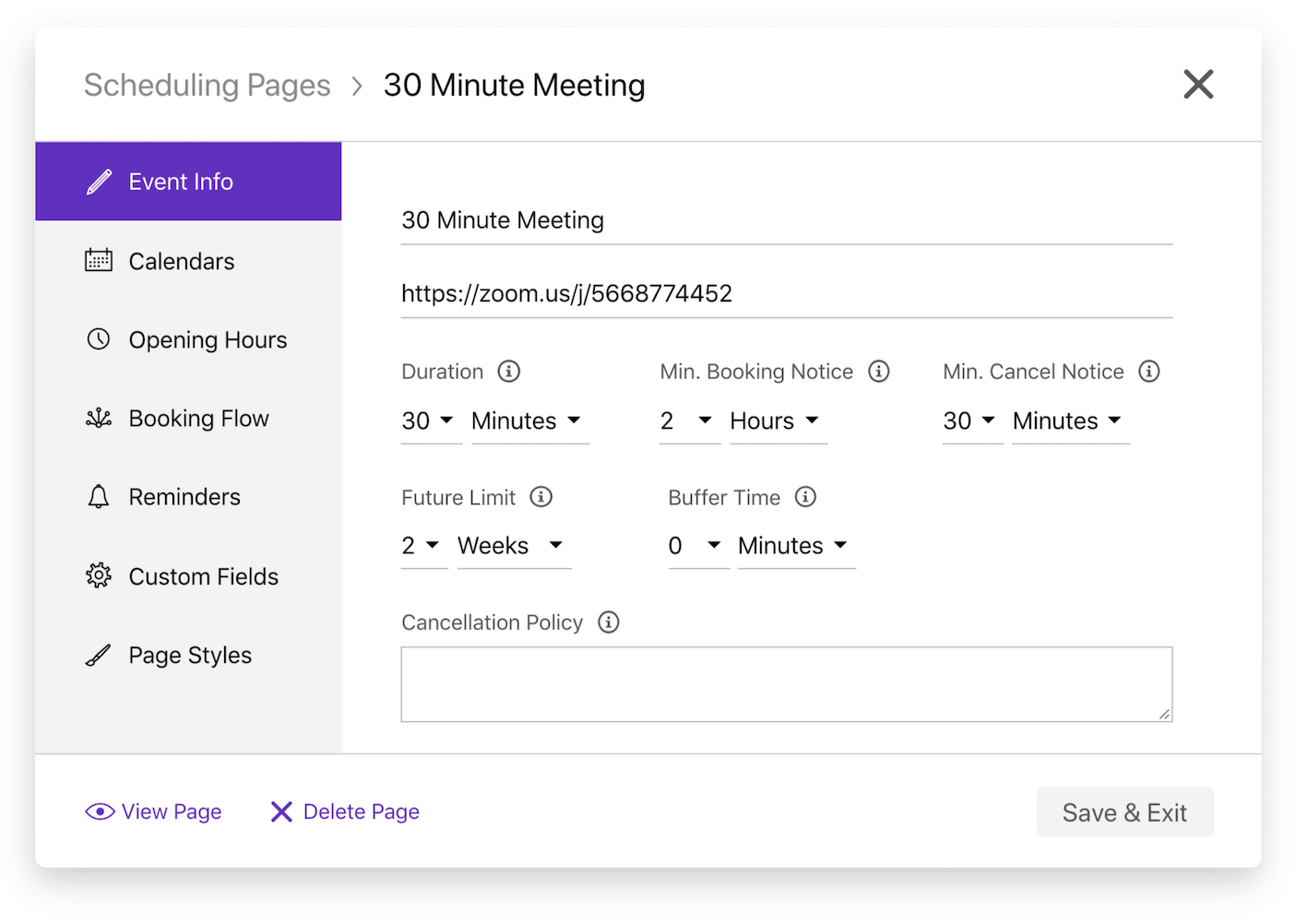
Nylas offers the Scheduler Editor component as a pre-built, extensible web- (HTML/Vanilla JS) and React-based UI component. After you add it to your project, organizers can use the Scheduler Editor to create and customize Configurations from your application. Organizers can use the component to...
- **Configure events**: Set titles, descriptions, durations, and locations.
- **Manage availability**: Set working hours, time slots, and scheduling methods.
- **Manage participants**: Add participants to bookings and set their availability.
- **Customize bookings**: Customize booking forms and confirmation settings.
- **Style Scheduling Pages**: Add your brand to your Scheduling Pages with custom logos and colors.
The Scheduler Editor component includes...
- **Custom event handlers** that let you define specific logic or behavior for user actions.
- **Composable components** that let you customize how each element is arranged and rendered in the UI.
- **Custom UI stylings** that support [CSS shadow parts](https://www.w3.org/TR/css-shadow-parts-1/) for a higher level of customization.
The component supports two configuration modes: `app` and `composable`. By default, it's set to `app` mode. In this mode, the Scheduling component renders all elements it contains, meaning you can embed the pre-built component in your project with minimal configuration. `composable` mode allows you to customize how the Scheduling component arranges and renders each element in the UI. In this mode, you can embed elements as standalone components.
For more information, see the [Scheduler UI components references](/docs/reference/ui/).
## Before you begin
Before you can use the Scheduler Editor component, you need to...
- [Create a scheduling Configuration](/docs/v3/scheduler/#create-a-configuration).
- Install the latest `@nylas/react` package.
```bash [install-npm]
npm install @nylas/react
```
```bash [install-yarn]
yarn add @nylas/react
```
```bash [install-pnpm]
pnpm add @nylas/react
```
- Set up authentication using either [`nylasSessionsConfig`](#set-up-authentication-with-nylassessionsconfig) or [`nylasApiRequest`](#set-up-authentication-with-nylasapirequest).
## Set up authentication with `nylasSessionsConfig`
To set up [Hosted OAuth](/docs/v3/auth/hosted-oauth-apikey/) for the Scheduler Editor component, set the [`nylasSessionsConfig` property](/docs/reference/ui/scheduler-editor/#nylassessionsconfig).
```html {11-17} [auth-HTML/Vanilla JS]
```
```tsx {7-13} [auth-React]
import React from "react";
import { NylasSchedulerEditor } from "@nylas/react";
function App() {
return (
",
redirectUri: `${window.location.origin}/scheduler-editor`,
domain: "https://api.us.nylas.com/v3",
hosted: true,
accessType: "offline",
}}
/>
);
}
export default App;
```
## Set up authentication with `nylasApiRequest`
> **Success:**
> **Before you can use `nylasApiRequest`, you need to download the latest version of the [**Nylas Identity package**](https://www.npmjs.com/package/@nylas/identity)**.
You have two options for setting up authentication using `nylasApiRequest`:
- [Using `nylasApiRequest` with the `NylasIdentityRequestWrapper`](#set-up-authentication-with-nylasidentityrequestwrapper) for existing Hosted OAuth flows.
- [Using `nylasApiRequest` with the `CustomIdentityRequestWrapper`](#set-up-authentication-with-customidentityrequestwrapper) for existing Bring Your Own Authentication flows.
### Set up authentication with `NylasIdentityRequestWrapper`
> **Warn:**
> **You must have an existing [**Hosted OAuth flow**](/docs/v3/auth/hosted-oauth-apikey/) in your Nylas application to use this method**.
You can use `nylasApiRequest` with the `NylasIdentityRequestWrapper` to configure the Scheduler Editor component with your existing Hosted OAuth details.
```html [hostedAuth-HTML/Vanilla JS]
Nylas Scheduler Editor with auth using NylasIdentityRequestWrapper
```
```tsx
import { BrowserRouter, Route, Routes } from "react-router-dom";
import { NylasSchedulerEditor, NylasScheduling } from "@nylas/react";
import LoginComp from "@nylas/login-component";
import "./App.css";
import { NylasSessions } from "@nylas/identity";
import { NylasIdentityRequestWrapper } from "@nylas/react";
function App() {
// Get the configuration ID from the URL query string
const urlParams = new URLSearchParams(window.location.search);
const clientId = "";
const configId = urlParams.get("config_id") || "";
const componentSettings = {
// Adjust the scopes as needed
authSettings: {
scopes: {
google: [
"openid",
"https://www.googleapis.com/auth/userinfo.email",
"https://www.googleapis.com/auth/userinfo.profile",
"https://www.googleapis.com/auth/contacts",
"https://www.googleapis.com/auth/calendar",
"https://www.googleapis.com/auth/directory.readonly",
],
microsoft: [
"Calendars.ReadWrite",
"Mail.ReadWrite",
"Contacts.ReadWrite",
"User.Read",
"offline_access",
],
},
},
};
const identitySettings = {
clientId: clientId,
redirectUri: `${window.location.origin}/nylas-auth/scheduler-editor`,
domain: "https://api.us.nylas.com/v3",
hosted: true,
accessType: "offline",
};
const identity = new NylasSessions(identitySettings);
const nylasApiRequest = new NylasIdentityRequestWrapper(identity);
return (
View Scheduler Editor
}
/>
}
/>
}
/>
);
}
export default App;
```
### Set up authentication with `CustomIdentityRequestWrapper`
If you want to use your existing Bring Your Own (BYO) authentication configuration or a different HTTP library to authenticate users, you can set up the `CustomIdentityRequestWrapper`. This implements `nylasApiRequest`.
> **Warn:**
> **The Scheduler Editor component and `CustomIdentityRequestWrapper` require an access token from the same origin**. Follow the steps in [Creating grants with OAuth and an access token](/docs/v3/auth/hosted-oauth-accesstoken/) and set the `redirect_uri` to `https://127.0.0.1:3000/scheduler-editor` to generate the access token.
Once you have an access token, you can use it in `CustomIdentityRequestWrapper` and the Scheduler Editor component. Make sure that `CustomIdentityRequestWrapper` has a `currentUser` function that returns the email address associated with the access token.
```html [customAuth-HTML/Vanila JS]
Nylas Scheduler Editor Component
```
```tsx
import { BrowserRouter, Route, Routes } from "react-router-dom";
import { NylasSchedulerEditor, NylasScheduling } from "@nylas/react";
import { CustomIdentityRequestWrapper } from "./custom";
import "./App.css";
function App() {
const accessToken = "";
const domain = "https://api.us.nylas.com/v3";
// Get the configuration ID from the URL query string.
const urlParams = new URLSearchParams(window.location.search);
const configId = urlParams.get("config_id") || "";
const nylasApiRequest = new CustomIdentityRequestWrapper(accessToken, domain);
return (
View Scheduler Editor
}
/>
}
/>
);
}
export default App;
```
```js [customAuth-Custom.js]
export class CustomIdentityRequestWrapper {
private accessToken: string;
constructor(accessToken: string) {
// Initialize the class
this.accessToken = accessToken;
}
async request(args: any): Promise {
try {
const response = await fetch(`https://api.us.nylas.com/v3/grants/me/${args.path}`, {
method: args.method,
body: JSON.stringify(args.body),
headers: {
...args.headers,
'Authorization': `Bearer ${this.accessToken}`,
'Content-Type': 'application/json',
},
});
// Check if the response is not okay (e.g., 404, 500)
if (!response.ok) {
console.error(`Error: ${response.status} ${response.statusText}`);
return { error: `Error: ${response.status} ${response.statusText}` } as any;
}
// Parse the response
const data = await response.json();
return [data, null] as any;
} catch (error) {
console.error('Fetch error:', error);
return [null, error] as any;
}
}
/**
* This method returns the current user's information.
*/
async currentUser() {
// IMPLEMENT: Get the logged in user's ID token and return the user information.
return {
id: 'idToken.sub',
email: 'j.doe@example.com',
name: 'John Doe',
provider: 'google',
};
}
/**
* This method sets the default authentication arguments to use when authenticating the user.
*/
async setDefaultAuthArgs(authArgs: any) {
// Set the default authentication arguments.
return authArgs;
};
/**
* This method returns the URL to redirect the user to for authentication.
*/
async authenticationUrl(): Promise {
// IMPLEMENT: Return the URL to redirect the user to for authentication.
return 'https://example.com/auth';
}
}
```
## Embed Scheduler Editor component
To embed the Scheduler Editor in your project, import the `NylasSchedulerEditor` component and configure it to suit your needs.
```html {9-12} [embed-HTML/Vanilla JS]
Scheduler Integration
```
```tsx {6-9} [embed-React]
function SchedulerEditorPage() {
return (
);
}
```
Once it's embedded, organizers can use the Scheduler Editor component to create and customize Configurations within your application. If you prefer to create Configurations manually, see [Create Configuration with Scheduler API](/docs/v3/scheduler/#create-configuration-with-scheduler-api).
## Customize Scheduler Editor component
The Scheduler Editor component includes many customization options — the following sections cover a few. For more options, see the [`NylasSchedulerEditor` component references](/docs/reference/ui/scheduler-editor/).
### Customize event handlers
Scheduler's event handlers respond to user actions and control the operations that follow. Each event handler is associated with a specific type of event (for example, `formSubmitted` or `previewButtonClicked`).
You can use the `eventOverrides` property to customize the default event handlers to use specific logic or behaviors. For example, you can add or remove steps in your booking flow, track user interactions for analytics, update the available time slots when the user selects a date, and much more.
This example defines custom logic to perform after the `schedulerConfigChanged` event is triggered.
```html [eventHandlers-HTML/Vanilla JS]
```
```tsx
{
// Any task that you want to perform.
console.log(event);
},
}}
>;
```
This event is triggered when the user takes an action, and it makes a call to the Scheduler APIs. For example, when a user clicks **Create** to create a Scheduling Page, the event is triggered and the handler makes a [Create Configuration request](/docs/reference/api/configurations/post-configurations/).
### Disable Scheduling Page Manager view
You can set the `configurationId` to point to a specific Configuration. This disables the Scheduling Page Manager view and loads the Edit view for the specified Scheduling Page.
```html [disableManager-HTML/Vanilla JS]
```
```tsx
```
### Add Scheduling Page Preview button
You can set `schedulerPreviewLink` to either `config.id` or `slug` to configure the Preview button in the Scheduling Page Manager view. When an organizer clicks the Preview button, they can view their Scheduling Page.
```html {7} [previewButton-HTML/Vanilla JS]
```
```tsx {2} [previewButton-React]
```
### Arrange and customize elements
You can use the [`composable` mode](#how-the-scheduler-editor-component-works) to customize how the Scheduler Editor component renders each element. When you use `composable` mode, you add elements under the `nylas-scheduler-editor` tag rather than wrapping them with `nylas-editor-tabs`.
The following example removes the default navigation tabs, and displays the [calendar picker](/docs/reference/ui/calendar-picker/) and [availability picker](/docs/reference/ui/availability-picker/) elements in a single view.
```html [arrange-HTML/Vanilla JS]
```
```tsx
",
redirectUri: `${window.location.origin}/scheduler-editor`,
domain: "https://api.us.nylas.com/v3",
hosted: true,
accessType: "offline",
}}
>
// Add sub-components
;
```
 This page explains how to handle authentication, [embed the component](#embed-scheduler-editor-component), and [customize it](#customize-scheduling-component).
## How the Scheduler Editor component works
Nylas offers the Scheduler Editor component as a pre-built, extensible web- (HTML/Vanilla JS) and React-based UI component. After you add it to your project, organizers can use the Scheduler Editor to create and customize Configurations from your application. Organizers can use the component to...
- **Configure events**: Set titles, descriptions, durations, and locations.
- **Manage availability**: Set working hours, time slots, and scheduling methods.
- **Manage participants**: Add participants to bookings and set their availability.
- **Customize bookings**: Customize booking forms and confirmation settings.
- **Style Scheduling Pages**: Add your brand to your Scheduling Pages with custom logos and colors.
The Scheduler Editor component includes...
- **Custom event handlers** that let you define specific logic or behavior for user actions.
- **Composable components** that let you customize how each element is arranged and rendered in the UI.
- **Custom UI stylings** that support [CSS shadow parts](https://www.w3.org/TR/css-shadow-parts-1/) for a higher level of customization.
The component supports two configuration modes: `app` and `composable`. By default, it's set to `app` mode. In this mode, the Scheduling component renders all elements it contains, meaning you can embed the pre-built component in your project with minimal configuration. `composable` mode allows you to customize how the Scheduling component arranges and renders each element in the UI. In this mode, you can embed elements as standalone components.
For more information, see the [Scheduler UI components references](/docs/reference/ui/).
## Before you begin
Before you can use the Scheduler Editor component, you need to...
- [Create a scheduling Configuration](/docs/v3/scheduler/#create-a-configuration).
- Install the latest `@nylas/react` package.
```bash [install-npm]
npm install @nylas/react
```
```bash [install-yarn]
yarn add @nylas/react
```
```bash [install-pnpm]
pnpm add @nylas/react
```
- Set up authentication using either [`nylasSessionsConfig`](#set-up-authentication-with-nylassessionsconfig) or [`nylasApiRequest`](#set-up-authentication-with-nylasapirequest).
## Set up authentication with `nylasSessionsConfig`
To set up [Hosted OAuth](/docs/v3/auth/hosted-oauth-apikey/) for the Scheduler Editor component, set the [`nylasSessionsConfig` property](/docs/reference/ui/scheduler-editor/#nylassessionsconfig).
```html {11-17} [auth-HTML/Vanilla JS]
This page explains how to handle authentication, [embed the component](#embed-scheduler-editor-component), and [customize it](#customize-scheduling-component).
## How the Scheduler Editor component works
Nylas offers the Scheduler Editor component as a pre-built, extensible web- (HTML/Vanilla JS) and React-based UI component. After you add it to your project, organizers can use the Scheduler Editor to create and customize Configurations from your application. Organizers can use the component to...
- **Configure events**: Set titles, descriptions, durations, and locations.
- **Manage availability**: Set working hours, time slots, and scheduling methods.
- **Manage participants**: Add participants to bookings and set their availability.
- **Customize bookings**: Customize booking forms and confirmation settings.
- **Style Scheduling Pages**: Add your brand to your Scheduling Pages with custom logos and colors.
The Scheduler Editor component includes...
- **Custom event handlers** that let you define specific logic or behavior for user actions.
- **Composable components** that let you customize how each element is arranged and rendered in the UI.
- **Custom UI stylings** that support [CSS shadow parts](https://www.w3.org/TR/css-shadow-parts-1/) for a higher level of customization.
The component supports two configuration modes: `app` and `composable`. By default, it's set to `app` mode. In this mode, the Scheduling component renders all elements it contains, meaning you can embed the pre-built component in your project with minimal configuration. `composable` mode allows you to customize how the Scheduling component arranges and renders each element in the UI. In this mode, you can embed elements as standalone components.
For more information, see the [Scheduler UI components references](/docs/reference/ui/).
## Before you begin
Before you can use the Scheduler Editor component, you need to...
- [Create a scheduling Configuration](/docs/v3/scheduler/#create-a-configuration).
- Install the latest `@nylas/react` package.
```bash [install-npm]
npm install @nylas/react
```
```bash [install-yarn]
yarn add @nylas/react
```
```bash [install-pnpm]
pnpm add @nylas/react
```
- Set up authentication using either [`nylasSessionsConfig`](#set-up-authentication-with-nylassessionsconfig) or [`nylasApiRequest`](#set-up-authentication-with-nylasapirequest).
## Set up authentication with `nylasSessionsConfig`
To set up [Hosted OAuth](/docs/v3/auth/hosted-oauth-apikey/) for the Scheduler Editor component, set the [`nylasSessionsConfig` property](/docs/reference/ui/scheduler-editor/#nylassessionsconfig).
```html {11-17} [auth-HTML/Vanilla JS]