# Using the Scheduling component
Source: https://developer.nylas.com/docs/v3/scheduler/using-scheduling-component/
You can use the Nylas Scheduling component to embed a complete scheduling interface directly in your project.
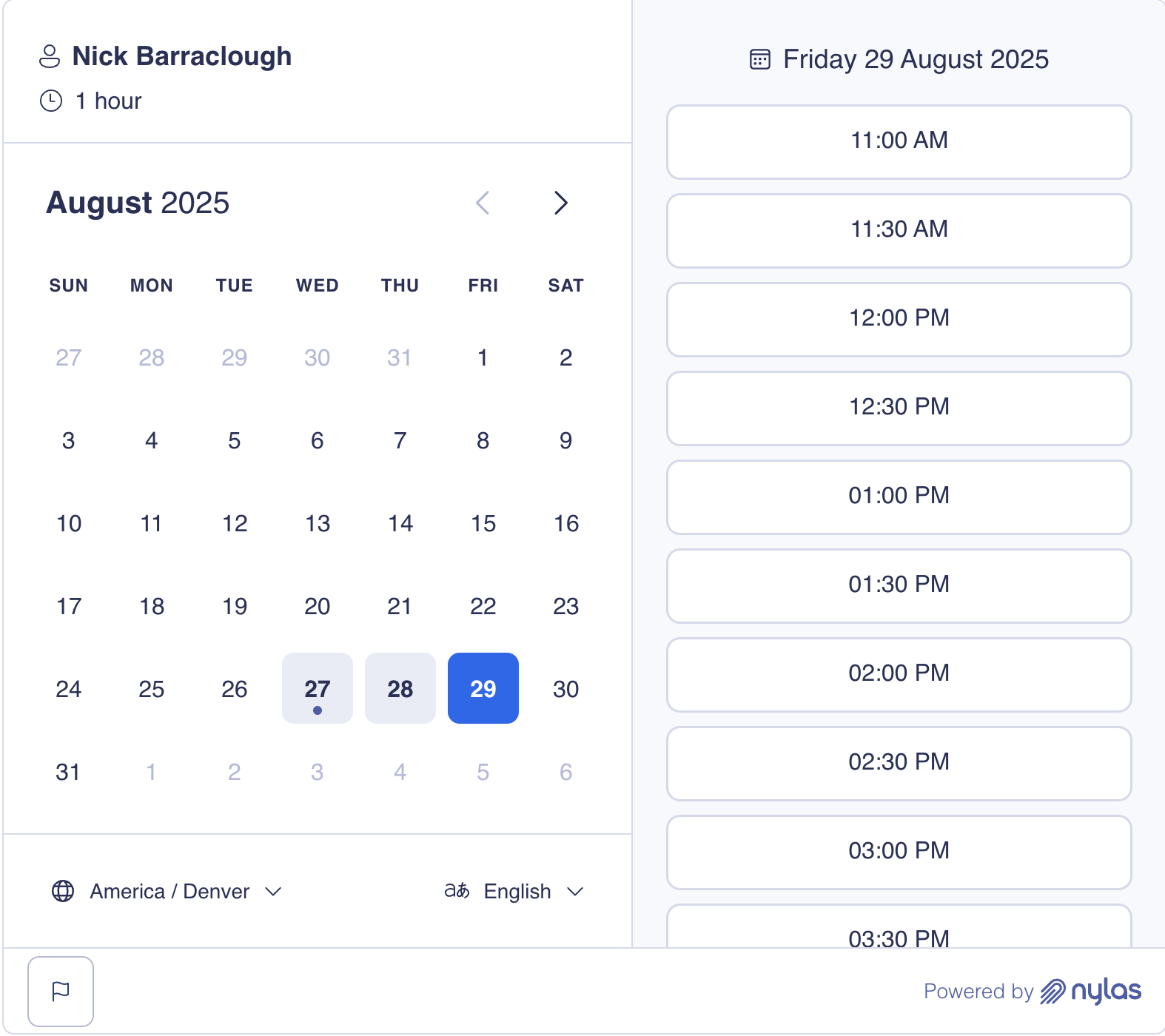 This page covers how to set it up using a [Configuration ID](#embed-scheduling-component-with-configuration-id) or a [slug](#embed-scheduling-component-with-slug) and [how to customize it](#customize-scheduling-component).
## How the Scheduling component works
Nylas offers the Scheduling component as a pre-built, extensible web- (HTML/Vanilla JS) and React-based UI component. After you add it to your project, guests can use the Scheduling Page to book meetings.
The Scheduling Component includes...
- **Custom event handlers** that let you define specific logic or behavior for user actions.
- **Composable components** that let you customize how each element is arranged and rendered in the UI.
- **Custom UI stylings** that support [CSS shadow parts](https://www.w3.org/TR/css-shadow-parts-1/) for a higher level of customization.
The component supports two configuration modes: `app` and `composable`. By default, it's set to `app` mode. In this mode, the Scheduling component renders all elements it contains, meaning you can embed the pre-built component in your project with minimal configuration. `composable` mode allows you to customize how the Scheduling component arranges and renders each element in the UI. In this mode, you can embed elements as standalone components.
For more information, see the [Scheduler UI components references](/docs/reference/ui/).
## Before you begin
Before you can use the Scheduling component, you need to...
- [Create a scheduling Configuration](/docs/v3/scheduler/#create-a-configuration).
- Install the latest `@nylas/react` package.
```bash [install-npm]
npm install @nylas/react
```
```bash [install-yarn]
yarn add @nylas/react
```
```bash [install-pnpm]
pnpm add @nylas/react
```
## Embed Scheduling component with Configuration ID
The simplest way to embed the Scheduling component is by passing a Configuration ID.
```html {11} [config-HTML/Vanilla JS]
Scheduler Integration
This page covers how to set it up using a [Configuration ID](#embed-scheduling-component-with-configuration-id) or a [slug](#embed-scheduling-component-with-slug) and [how to customize it](#customize-scheduling-component).
## How the Scheduling component works
Nylas offers the Scheduling component as a pre-built, extensible web- (HTML/Vanilla JS) and React-based UI component. After you add it to your project, guests can use the Scheduling Page to book meetings.
The Scheduling Component includes...
- **Custom event handlers** that let you define specific logic or behavior for user actions.
- **Composable components** that let you customize how each element is arranged and rendered in the UI.
- **Custom UI stylings** that support [CSS shadow parts](https://www.w3.org/TR/css-shadow-parts-1/) for a higher level of customization.
The component supports two configuration modes: `app` and `composable`. By default, it's set to `app` mode. In this mode, the Scheduling component renders all elements it contains, meaning you can embed the pre-built component in your project with minimal configuration. `composable` mode allows you to customize how the Scheduling component arranges and renders each element in the UI. In this mode, you can embed elements as standalone components.
For more information, see the [Scheduler UI components references](/docs/reference/ui/).
## Before you begin
Before you can use the Scheduling component, you need to...
- [Create a scheduling Configuration](/docs/v3/scheduler/#create-a-configuration).
- Install the latest `@nylas/react` package.
```bash [install-npm]
npm install @nylas/react
```
```bash [install-yarn]
yarn add @nylas/react
```
```bash [install-pnpm]
pnpm add @nylas/react
```
## Embed Scheduling component with Configuration ID
The simplest way to embed the Scheduling component is by passing a Configuration ID.
```html {11} [config-HTML/Vanilla JS]
Scheduler Integration
Book a Meeting
```
```tsx {8} [config-React]
function BookingPage() {
return (
Book a Meeting
);
}
```
When you use a Configuration ID, the Scheduling component gains direct access to the Configuration, loads faster, and is more secure than passing a slug. We strongly recommend using this approach.
## Embed Scheduling component with slug
Use a slug in the Scheduling component when you want to reference a public Configuration by its URL identifier.
```html {11-12} [slug-HTML/Vanilla JS]
Scheduler Integration
Book a Meeting
```
```tsx {8-9} [slug-React]
function BookingPage() {
return (
Book a Meeting
);
}
```
When you use a slug, Scheduler presents a human-readable URL that's easy to share. This solution also works with [Nylas-hosted Scheduling Pages](/docs/v3/scheduler/hosted-scheduling-pages/).
## Best practices for Scheduling component
The following sections cover some best practices to keep in mind when adding the Scheduling component to your project.
### Set up error boundaries
We recommend wrapping the Scheduling component in an error boundary when you integrate it. The boundary should be able to catch and handle any unexpected errors.
```tsx
class SchedulerErrorBoundary extends React.Component {
constructor(props) {
super(props);
this.state = { hasError: false };
}
static getDerivedStateFromError(error) {
return { hasError: true };
}
render() {
if (this.state.hasError) {
return Something went wrong with the scheduler.
;
}
return this.props.children;
}
}
...
```
### Add loading state indicators
We recommend adding custom loading indicators to display while the Scheduling component is initializing or completing processes in the background.
```tsx
function SchedulerWithLoading() {
const [isReady, setIsReady] = useState(false);
return (
{!isReady &&
Loading...
}
setIsReady(true)}
/>
Book a Meeting
);
}
```
### Create one-time invitation
You can use the Scheduling component to create and display one-time invitations for events. These invitations have a set date and time, and guests can book the event by entering their contact information.
This example configures the default Scheduling Page state (`defaultSchedulerState`) to show the booking form with a pre-selected time. It also disables the Back button, so the user can't go back to the time slot selection page.
```html [createInvite-HTML/Vanilla JS]
```
```tsx
"}
// OR set the Scheduler session ID if using private Configuration (`requires_session_auth=true`).
// sessionId={""}
defaultSchedulerState={{
showBookingForm: true,
selectedTimeslot: {
start_time: new Date(1739257200 * 1000),
end_time: new Date(1739259000 * 1000),
},
}}
/>;
```
### Pre-fill the booking form
You can define `bookingInfo` to pre-fill the booking form (for example, to pre-fill the guest's name and email address).
> **Success:**
> **For hosted Scheduling Pages**, you can [pass query parameters in the URL](/docs/v3/scheduler/hosted-scheduling-pages/#pre-filled-booking-forms) to pre-fill the booking form.
```html [prefill-HTML/Vanilla JS]
```
```tsx
const bookingInfoData = {
primaryParticipant: {
name: 'Leyah Miller',
email: 'leyah@example.com',
},
guests: [{
name: 'Nyla',
email: 'nyla@example.com'
}],
additionalFields: {
additional_email: {
value: 'nylas@example.com',
type: 'email',
},
phone_number: {
value: '1234567890',
type: 'phone_number'
}
};
```
### Customize event handlers
Scheduler's event handlers respond to user actions and control the operations that follow. Each event handler is associated with a specific type of event (for example, `bookTimeslot` or `cancelBooking`).
You can use the `eventOverrides` property to customize the default event handlers to use specific logic or behaviors. For example, you can track user interactions for analytics, update the available time slots when the user selects a date, and much more.
The following example overrides the default `timeslotConfirmed` handler.
```html [eventHandlers-HTML/Vanilla JS]