Not every meeting comes from Scheduler. When your product creates events directly through the Events API, the attendees get whatever Google or Microsoft sends, which carries the organizer’s branding rather than yours. An event.created workflow puts your own email in front of them.
This recipe covers the payload differences from Scheduler, which matter because the template variables aren’t the same.
Who receives the email?
Section titled “Who receives the email?”Attendees. By default, Nylas sends one message to everyone in the event’s participants array, and recipient isn’t set. To give each attendee their own copy, add "notify_individually": "true" to the event’s metadata when you create it. Nylas then sends one message per participant and populates recipient.email, recipient.first_name, and recipient.last_name, so the template can greet each attendee by name. The value must be the string "true". See Notify individual participants.
The message goes to the addresses in the event’s participants array. To send the organizer a copy, include them in that array when you create the event.
How’s the payload different from Scheduler?
Section titled “How’s the payload different from Scheduler?”There’s no booking_info wrapper. Scheduler nests everything under booking_info, while event.created puts the event fields at the payload root, and times live under a when object rather than as top-level timestamps.
| Purpose | Scheduler | Events API |
|---|---|---|
| Title | booking_info.title | title |
| Start time | booking_info.start_time | when.start_time |
| Timezone | booking_info.guest_timezone | when.start_timezone |
| Attendees | booking_info.participants | participants |
| Join link | booking_info.location | conferencing.details.url |
| Organizer | not exposed directly | organizer.email |
| Calendar link | booking_info.event_html_link | html_link |
A Scheduler template won’t work here, and pointing an event.created workflow at one fails the render with 400 and sends nothing. Write a separate template.
event.updated and event.deleted carry the same root shape, so the same template structure covers a meeting being moved or cancelled. event.updated adds cancelled_occurrences for recurring events.
How do I create the workflow?
Section titled “How do I create the workflow?”Create a template, then an application-level workflow on event.created. The example sets from, which sends through transactional send and needs the address on a verified domain. Send-only needs 4 DNS records and leaves your inbound mail alone, which the Workflows overview covers. Omit from to send from the mailbox of the grant whose calendar the event is on.
curl -X POST 'https://api.us.nylas.com/v3/templates' \ -H "Authorization: Bearer $NYLAS_API_KEY" -H 'Content-Type: application/json' \ -d '{ "name": "Meeting booked", "engine": "handlebars", "subject": "Confirmed: {{title}}", "body": "<html>…</html>" }'curl -X POST 'https://api.us.nylas.com/v3/workflows' \ -H "Authorization: Bearer $NYLAS_API_KEY" -H 'Content-Type: application/json' \ -d '{ "name": "Meeting booked", "trigger_event": "event.created", "template_id": "<TEMPLATE_ID>", "delay": 0, "is_enabled": true, "from": { "email": "[email protected]", "name": "Your Company" } }'Before enabling it, consider the volume. event.created fires for every event created on every calendar the application can see, including events your users create by hand in Google Calendar and events synced from elsewhere. On an application with busy calendars that’s a lot of mail from your domain. Scope this to an application where your product is the thing creating events, or use a grant-level workflow to limit it to the customers who asked for it.
How does the template handle dates and timezones?
Section titled “How does the template handle dates and timezones?”The when object takes one of three shapes, named by when.object:
when.object | Fields | Used for |
|---|---|---|
timespan | start_time, end_time, start_timezone, end_timezone | Timed meetings |
date | date | A single all-day event |
datespan | start_date, end_date | A multi-day all-day event |
Only timespan carries a Unix timestamp. formatDate throws on the date strings in date and datespan, so branch on when.object first and print the date as it arrives. The template prints only the start of a datespan, because Google and Microsoft set end_date to the day after the event ends.
For timed events, use when.start_timezone, which comes from the event itself. This is simpler than the Scheduler case, where the guest timezone is often empty.
{{#if (eq when.object "date")}} {{when.date}}, all day{{else}}{{#if (eq when.object "datespan")}} All day, starting {{when.start_date}}{{else}} {{#if when.start_timezone}} {{ formatDate when.start_time when.start_timezone "EEEE d LLLL yyyy, h:mm a ZZZZ" "en" }} {{else}} {{ formatDate when.start_time "UTC" "EEEE d LLLL yyyy, h:mm a ZZZZ" "en" }} {{/if}}{{/if}}{{/if}}The inner guard matters because formatDate throws on a missing argument rather than falling back. The ZZZZ token prints the zone name, so a recipient reading a time in a zone other than their own can see which one applies.
The join link needs three levels of guard, because conferencing is absent entirely on meetings without a video call:
{{#if conferencing}}{{#if conferencing.details}}{{#if conferencing.details.url}} <a href="{{conferencing.details.url}}">{{conferencing.details.url}}</a>{{/if}}{{/if}}{{/if}}Each level is required. The renderer throws when a guard reaches through a parent that doesn’t exist, so {{#if conferencing.details.url}} on its own fails on a meeting with no conferencing. Why isn’t my workflow sending email? covers the guard rules in full.
The complete template
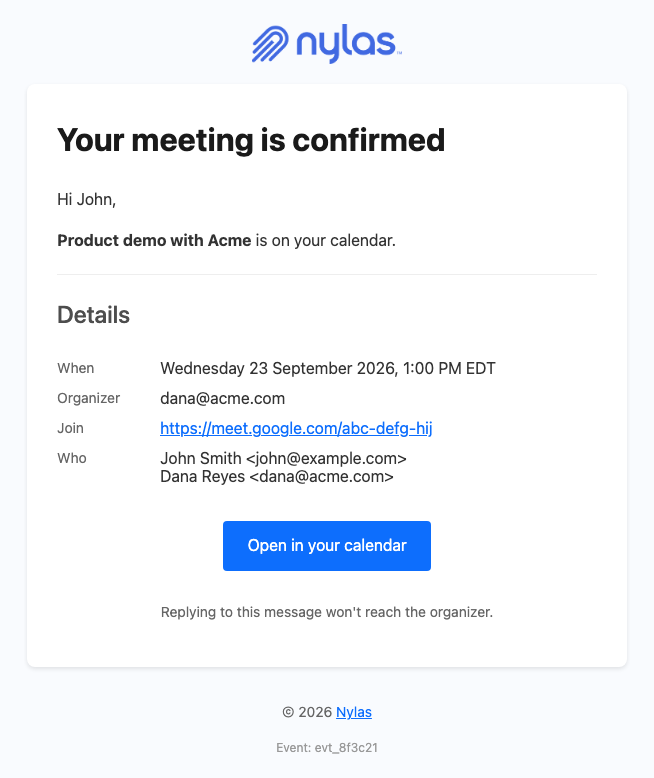
Section titled “The complete template”This renders the email in the screenshot above for timed, all-day, and multi-day events, including events with no conferencing, no organizer name, or no timezone.
<!DOCTYPE html><html lang="en" xmlns="http://www.w3.org/1999/xhtml"><head>  <meta charset="UTF-8" />  <meta name="viewport" content="width=device-width, initial-scale=1.0" />  <meta name="color-scheme" content="light only" />  <meta name="supported-color-schemes" content="light" />  <title>{{#if title}}{{title}}{{else}}Your meeting{{/if}}</title>  <link href="https://fonts.googleapis.com/css2?family=Geist:wght@400;500;600&display=swap" rel="stylesheet" />  <style>    body { margin: 0; padding: 0; background-color: #F2F2F4; }    @media only screen and (max-width: 700px) {      .wrap { width: 100% !important; }      .pad { padding-left: 24px !important; padding-right: 24px !important; }      .hero-pad { padding: 40px 16px 44px 16px !important; }      .hero-wrap { padding: 0 8px !important; }      .page-pad { padding: 12px 8px !important; }      .wrap { border-radius: 10px !important; }      .hero-pad a { white-space: normal !important; }      .headline { font-size: 28px !important; line-height: 34px !important; }    }  </style></head>
<body style="margin: 0; padding: 0; background-color: #F2F2F4;">  {{!-- when.object is timespan, date, or datespan. All-day events have no time to format, so they branch before formatDate. --}}  <div style="display: none; max-height: 0; overflow: hidden; opacity: 0; mso-hide: all;">It's on your calendar. Here are the details.</div>
  <table role="presentation" width="100%" cellpadding="0" cellspacing="0" border="0" bgcolor="#F2F2F4" style="background-color: #F2F2F4;">    <tr>      <td class="page-pad" align="center" style="padding: 40px 16px;">        <table role="presentation" class="wrap" width="680" cellpadding="0" cellspacing="0" border="0" bgcolor="#FFFFFF" style="width: 680px; max-width: 680px; background-color: #FFFFFF; border-collapse: separate; border-radius: 12px; overflow: hidden; border: 1px solid #E4E4E8;">
          <tr>            <td class="pad" style="padding: 32px 48px 28px 48px;">              {{!-- Replace with your own logo. --}}              <img src="https://developer.nylas.com/_images/email/nylas-logo.png" alt="Nylas" width="96" style="display: block; width: 96px; height: auto; border: 0;" />            </td>          </tr>
          <tr>            <td class="hero-wrap" style="padding: 0 12px;">              <table role="presentation" width="100%" cellpadding="0" cellspacing="0" border="0" style="border-collapse: separate; border-radius: 8px; overflow: hidden;">                <tr>            <td class="hero-pad" bgcolor="#1F1F1F" style="padding: 52px 36px 56px 36px; border-radius: 8px; background-color: #1F1F1F; background-image: radial-gradient(ellipse 80% 90% at 85% 0%, #18AA9C 0%, #1D4D48 45%, #1F1F1F 78%);">              <h1 class="headline" style="margin: 0; font-family: Geist, Helvetica, Arial, sans-serif; font-size: 34px; line-height: 40px; font-weight: 500; letter-spacing: -0.5px; color: #FFFFFF; word-break: break-word;">{{#if title}}{{title}}{{else}}Your meeting{{/if}} is confirmed</h1>              <p style="margin: 18px 0 0 0; font-family: Geist, Helvetica, Arial, sans-serif; font-size: 17px; line-height: 26px; color: #FFFFFF; word-break: break-word;">{{#if (eq when.object "date")}}{{when.date}}, all day{{else}}{{#if (eq when.object "datespan")}}All day, starting {{when.start_date}}{{else}}{{#if when.start_timezone}}{{ formatDate when.start_time when.start_timezone "EEEE d LLLL yyyy, h:mm a ZZZZ" "en" }}{{else}}{{ formatDate when.start_time "UTC" "EEEE d LLLL yyyy, h:mm a ZZZZ" "en" }}{{/if}}{{/if}}{{/if}}</p>              <div style="margin-top: 20px; font-size: 0; line-height: 0;">{{#if conferencing}}{{#if conferencing.details}}{{#if conferencing.details.url}}<a href="{{conferencing.details.url}}" style="display: inline-block; margin: 12px 12px 0 0; padding: 14px 28px; font-family: Geist, Helvetica, Arial, sans-serif; font-size: 16px; font-weight: 500; line-height: 20px; text-decoration: none; border-radius: 999px; white-space: nowrap; background-color: #FFFFFF; color: #080817; border: 1px solid #FFFFFF;">Join the meeting</a>{{/if}}{{/if}}{{/if}}</div>            </td>                </tr>              </table>            </td>          </tr>
          <tr>            <td class="pad" style="padding: 40px 48px 0 48px; font-family: Geist, Helvetica, Arial, sans-serif; font-size: 16px; line-height: 26px; color: #1F1F1F; word-break: break-word;">              <p style="margin: 0;">{{#if recipient}}{{#if recipient.first_name}}Hi {{recipient.first_name}},{{else}}Hi,{{/if}}{{else}}Hi,{{/if}}</p>              <p style="margin: 16px 0 0 0;">It's on your calendar. Replying to this message won't reach the organizer.</p>            </td>          </tr>
          <tr>            <td class="pad" style="padding: 24px 48px 0 48px;">              <table role="presentation" width="100%" cellpadding="0" cellspacing="0" border="0" style="table-layout: fixed;">                {{#if organizer}}{{#if organizer.email}}                <tr>                  <td valign="top" width="104" style="width: 104px; padding: 12px 0; border-bottom: 1px solid #EFEFEF; font-family: Geist, Helvetica, Arial, sans-serif; font-size: 15px; line-height: 24px; color: #5F6368;">Organizer</td>                  <td valign="top" style="padding: 12px 0; border-bottom: 1px solid #EFEFEF; font-family: Geist, Helvetica, Arial, sans-serif; font-size: 15px; line-height: 24px; color: #1F1F1F; word-break: break-word; overflow-wrap: anywhere;">{{organizer.email}}</td>                </tr>                {{/if}}{{/if}}                {{#if conferencing}}{{#if conferencing.details}}{{#if conferencing.details.url}}                <tr>                  <td valign="top" width="104" style="width: 104px; padding: 12px 0; border-bottom: 1px solid #EFEFEF; font-family: Geist, Helvetica, Arial, sans-serif; font-size: 15px; line-height: 24px; color: #5F6368;">Join</td>                  <td valign="top" style="padding: 12px 0; border-bottom: 1px solid #EFEFEF; font-family: Geist, Helvetica, Arial, sans-serif; font-size: 15px; line-height: 24px; color: #1F1F1F; word-break: break-word; overflow-wrap: anywhere;"><a href="{{conferencing.details.url}}" style="color: #0B7D72; text-decoration: underline; word-break: break-all;">{{conferencing.details.url}}</a></td>                </tr>                {{/if}}{{/if}}{{/if}}                <tr>                  <td valign="top" width="104" style="width: 104px; padding: 12px 0; border-bottom: 1px solid #EFEFEF; font-family: Geist, Helvetica, Arial, sans-serif; font-size: 15px; line-height: 24px; color: #5F6368;">Who</td>                  <td valign="top" style="padding: 12px 0; border-bottom: 1px solid #EFEFEF; font-family: Geist, Helvetica, Arial, sans-serif; font-size: 15px; line-height: 24px; color: #1F1F1F; word-break: break-word; overflow-wrap: anywhere;">{{#each participants}}{{#if name}}{{name}}{{else}}{{email}}{{/if}}{{#unless @last}}<br />{{/unless}}{{/each}}</td>                </tr>              </table>            </td>          </tr>
          <tr>            <td class="pad" style="padding: 44px 48px 48px 48px;">              <table role="presentation" width="100%" cellpadding="0" cellspacing="0" border="0">                <tr>                  <td style="border-top: 1px solid #E6E6E6; padding-top: 20px; font-family: Geist, Helvetica, Arial, sans-serif; font-size: 13px; line-height: 20px; color: #5F6368; word-break: break-all;">{{#if id}}Event {{id}}{{/if}}</td>                </tr>              </table>            </td>          </tr>
        </table>      </td>    </tr>  </table></body></html>
Render it against a real event.created payload with POST /v3/templates/render before enabling the workflow. The Events notification reference publishes a sample payload to test with.
What’s next
Section titled “What’s next”- Tell Events API attendees the meeting is recorded when a Notetaker joins the meeting
- Customize Scheduler email for your app for the Scheduler equivalent and its different payload
- Why isn’t my workflow sending email? for the guard rules and render testing
- Events notifications for the full
event.createdpayload