The Nylas Calendar API, part of Nylas Connect, gives your application a secure, reliable connection to your users’ calendars and the events they contain. It provides a REST interface that lets you…
- Access data for calendars and events (event titles, locations, descriptions, and so on).
- Schedule events and send notifications.
- RSVP to existing events.
Key concepts
Section titled “Key concepts”- A grant is an authenticated connection to one user’s account. You pass its grant ID on every Calendar API request to act on that account.
- A calendar is a container for events. A user can have several, and one is always their primary (default) calendar.
- An event is a scheduled entry on a calendar, including its time, participants, location, description, and attendee responses.
- Availability is the set of free and busy time blocks Nylas computes from a user’s calendars, which you use to find open slots and book meetings.
Calendars and Events
Section titled “Calendars and Events”Each user who authenticates with your Nylas application might have zero, one, or multiple calendars. Their account can have many calendars, including the primary calendar, shared team calendars, and other custom calendars. They might also have Read access to their teammates’ calendars.
In general, a Calendar object serves as a container for Event objects. A single user usually has access to several calendars, but one is always considered their “primary” or default calendar. Calendars can be shared amongst users, and users might have full Read/Write access to a calendar (owner or organizer), Read-only access (subscriber), or they might be able to see only the free/busy information.
By default, when a user authenticates their account with your application, Nylas generates notifications for their primary calendar only. You can modify settings in the Nylas Dashboard to receive notifications for all of your users’ calendars, or choose specific calendars for a single grant.
Event objects are containers for information about scheduled events. This includes a list of the people involved, details about the time, meeting location (in-person address or virtual conferencing details), and a description. They can also include attachments and information about who has confirmed their attendance.
There are several types of calendars that you might encounter when working with the Nylas Calendar APIs:
Provider calendars
Section titled “Provider calendars”These are the most common type of calendar. There are several types of provider calendars: personal, group, and resource. You can view, add, modify, and delete events on calendars where read_only is false. Nylas makes changes directly on the provider.
iCloud calendars are provider calendars too. Apple exposes them only over CalDAV and its on-device EventKit framework, and the Apple Calendar API page compares both with the Calendar API.
Microsoft shared calendars
Section titled “Microsoft shared calendars”You can use the full set of Calendar APIs on Microsoft shared calendars only if they are correctly configured, and used with the correct permissions.
- Set the
Calendars.ReadWrite.SharedAPI permission in the Azure application. - Make sure that the calendar owner specifically gives individual users access to the shared calendar. The owner can grant
Can view all detailsorCan editpermissions, depending on your use cases. If the shared calendar owner grants “organizational access” to a shared calendar, meaning default-on access granted to the entire domain (sometimes called “tenant-based sharing”), then the owner must explicitly grant theCan editpermission to users who need access using Nylas. TheCan view all detailspermission does not allow Nylas access to the shared calendar.
Shared calendars come back in the same list as the user’s own calendars. To tell them apart, check the owner_email field, which names the account that owns each calendar.
Agent Account calendars
Section titled “Agent Account calendars”An Agent Account is a Nylas-hosted mailbox and calendar on a domain you control. Use one when you need a calendar for something that has no account on Google, Microsoft, or another provider: a meeting room, a piece of equipment, an external contractor, or an AI agent. You create it with one API call and no OAuth flow, and it never expires.
Because the calendar sits on a real mailbox, it behaves like a person’s calendar to everyone else. It sends invitations when you create an event with notify_participants=true, receives invitations that anyone sends to its address, and answers them through the Send RSVP endpoint. Updates and cancellations reach every attendee’s calendar. All of the Calendar and Events endpoints on this page work on an Agent Account grant, and so does Scheduler.
Limited calendar support for IMAP providers
Section titled “Limited calendar support for IMAP providers”IMAP is a protocol for receiving messages only. “IMAP” service providers use the IMAP protocol to receive messages, and the SMTP protocol to send them. Neither of these protocols includes calendar functionality.
Calendar availability
Section titled “Calendar availability”The Nylas APIs offer multiple ways to get information about users’ availability, so you can book meetings or run other time-based operations.
Which calendar availability tool to use
Diagram as text
- Your app: Decide what you need: Raw busy times to work with yourself, ready-to-offer meeting times, or a complete booking page for guests.
- Ends in one of:
- Only busy times → Free/Busy: Returns the busy blocks on each person's calendar, one list per person. You work out the free times yourself. Up to 20 people on Microsoft or 50 on Google, all on the same provider. Not available for iCloud. Request:
POST /with a list ofv3/ grants/ {grant_id}/ calendars/ free-busy emails. - Meeting times in your UI (recommended) → Availability: Returns times when a meeting fits, with the people free at each time. Nylas applies working hours and breaks between meetings for you. Works for meetings everyone attends and for round robin, where any one person can host. Every person must have connected their calendar (a grant). Request:
POST /.v3/ calendars/ availability - A ready-made booking page → Scheduler: Gives guests a booking page where they pick a time and Nylas books it. You set the rules once in a Configuration, in the Dashboard or with
POST /. Guests book on a Nylas-hosted page or on the Scheduling Component in your app, which callv3/ grants/ {grant_id}/ scheduling/ configurations GET /andv3/ scheduling/ availability POST /v3/scheduling/bookings.
- Only busy times → Free/Busy: Returns the busy blocks on each person's calendar, one list per person. You work out the free times yourself. Up to 20 people on Microsoft or 50 on Google, all on the same provider. Not available for iCloud. Request:
The Free/Busy endpoint
Section titled “The Free/Busy endpoint”The simplest way to get availability information is using the Free/Busy endpoint. When you make a Free/Busy request, Nylas queries the provider, which returns simple information about blocks of time when the user is booked and not available. For more information, see Check free/busy information.
If you’re querying a user within your organization, this information is usually public within the org. If you’re querying for a user outside of your organization, the calendar’s owner must have published or made public the free/busy information.
The Availability endpoint
Section titled “The Availability endpoint”You can use the Availability endpoint to find space in a user’s calendar for a meeting with specific and detailed criteria. Use the endpoint to find a time that works, which you can then feed to the Events API to create an actual booking. For more information, see Check calendar availability.
Before you begin
Section titled “Before you begin”To follow along with the samples on this page, you first need to sign up for a Nylas developer account, which gets you a free Nylas application and API key.
For a guided introduction, you can follow the Getting started guide to set up a Nylas account and Sandbox application. When you have those, you can connect an account from a calendar provider (such as Google, Microsoft, or iCloud) and use your API key with the sample API calls on this page to access that account’s data.
Get available calendars
Section titled “Get available calendars”Most users subscribe to multiple calendars. To view a list of all calendars they have access to, make a Get all Calendars request.
To make examples easier to read, this guide uses a query parameter to limit the number of results to five. See the pagination references to learn more about controlling the number of objects that Nylas returns.
The following example shows how to get a user’s available calendars, and the type of JSON response you can expect.
curl -X GET "https://api.us.nylas.com/v3/grants/<NYLAS_GRANT_ID>/calendars?limit=5" \ -H "accept: application/json"\ -H "authorization: Bearer <NYLAS_API_KEY>"{ "request_id" : "123-456-789", "data" : [ { "grant_id": "<NYLAS_GRANT_ID>" "description": "Board game nights!", "id": "zd08j9stfph95u449vti", "is_primary": false, "name": "Game nights", "object": "calendar", "read_only": true, "timezone": "America/Toronto", "hex_color": "#000000", "is_owned_by_user": true, }, { "grant_id": "<NYLAS_GRANT_ID>" "description": null, "id": "joujhadwh59pz9rvfjfw", "is_primary": false, "object": "calendar", "read_only": true, "timezone": "America/Toronto", "hex_color": "#000000", "is_owned_by_user": false, } ]}import Nylas from "nylas";
const nylas = new Nylas({ apiKey: "<NYLAS_API_KEY>", apiUri: "<NYLAS_API_URI>",});
async function fetchFiveAvailableCalendars() { try { const calendars = await nylas.calendars.list({ identifier: "<NYLAS_GRANT_ID>", queryParams: { limit: 5, }, });
console.log("Available Calendars:", calendars); } catch (error) { console.error("Error fetching calendars:", error); }}
fetchFiveAvailableCalendars();from nylas import Client
nylas = Client( "<NYLAS_API_KEY>", "<NYLAS_API_URI>")
grant_id = "<NYLAS_GRANT_ID>"calendars = nylas.calendars.list(grant_id)
print(calendars)require 'nylas'
nylas = Nylas::Client.new(api_key: "<NYLAS_API_KEY>")
calendars, _request_ids = nylas.calendars.list(identifier: "<NYLAS_GRANT_ID>", query_params: {limit: 5})
calendars.each {|calendar| puts calendar}import com.nylas.NylasClient;import com.nylas.models.*;import java.util.List;
public class read_calendars { public static void main(String[] args) throws NylasSdkTimeoutError, NylasApiError { NylasClient nylas = new NylasClient.Builder("<NYLAS_API_KEY>").build();
ListCalendersQueryParams listCalendersQueryParams = new ListCalendersQueryParams. Builder(). limit(5). build();
List<Calendar> calendars = nylas.calendars().list(dotenv.get("CALENDAR_ID"), listCalendersQueryParams).getData();
for (Calendar calendar : calendars) { System.out.println(calendar); } }}import com.nylas.NylasClientimport com.nylas.models.*import com.nylas.resources.Calendars
fun main(args: Array<String>) { val nylas: NylasClient = NylasClient(apiKey = "<NYLAS_API_KEY>") val calendarQueryParams: ListCalendersQueryParams = ListCalendersQueryParams(limit = 5) val calendars: List<Calendar> = nylas.calendars().list("<CALENDAR_ID>", calendarQueryParams).data
for(calendar in calendars) { println(calendar) }}The is_primary field is included for Google and EWS calendars. If it’s true, it’s the account’s primary calendar. If false, it’s either a secondary or child calendar. For other providers, the primary calendar usually uses the account’s email address as the name, otherwise it’s called Calendar.
The owner_email field
Section titled “The owner_email field”Microsoft calendars include an owner_email field that holds the email address of the account the calendar belongs to. It’s most useful when a Microsoft user has access to shared calendars: is_owned_by_user tells you whether the calendar is theirs, and owner_email tells you whose it is when it isn’t.
Nylas returns owner_email for Microsoft grants only. Google, iCloud, EWS, and virtual calendars omit the field entirely, so read it defensively rather than assuming it’s present on every Calendar object. The value is read-only, and you can’t set or change it with a PUT request.
Get a calendar
Section titled “Get a calendar”You can return information about a single calendar by making a Get Calendar request that includes the appropriate calendar id.
curl --compressed --request GET \ --url 'https://api.us.nylas.com/v3/grants/<NYLAS_GRANT_ID>/calendars/<CALENDAR_ID>' \ --header 'Accept: application/json' \ --header 'Authorization: Bearer <NYLAS_API_KEY>' \ --header 'Content-Type: application/json'{ "request_id": "123-456-789", "data": { "grant_id": "<NYLAS_GRANT_ID>", "description": "Board game nights!", "id": "zd08j9stfph95u449vti", "is_primary": false, "name": "Game nights", "object": "calendar", "read_only": false, "timezone": "UTC", "hex_color": "#a47ae2", "hex_foreground_color": "#000000", "is_owned_by_user": true, }}import Nylas from "nylas";
const nylas = new Nylas({ apiKey: "<NYLAS_API_KEY>", apiUri: "<NYLAS_API_URI>",});
async function fetchCalendar() { try { const calendar = await nylas.calendars.find({ identifier: "<NYLAS_GRANT_ID>", calendarId: "<CALENDAR_ID>", });
console.log("Calendar:", calendar); } catch (error) { console.error("Error fetching calendars:", error); }}
fetchCalendar();from nylas import Client
nylas = Client( "<NYLAS_API_KEY>", "<NYLAS_API_URI>")
grant_id = "<NYLAS_GRANT_ID>"
calendar = nylas.calendars.find( grant_id, "<CALENDAR_ID>")
print(calendar)require 'nylas'
nylas = Nylas::Client.new(api_key: "<NYLAS_API_KEY>")
calendar, _request_ids = nylas.calendars.find( identifier: "<NYLAS_GRANT_ID>", calendar_id: "<CALENDAR_ID>")
puts calendarimport com.nylas.NylasClient;import com.nylas.models.*;
public class GetCalendar { public static void main(String[] args) throws NylasSdkTimeoutError, NylasApiError { NylasClient nylas = new NylasClient.Builder("<NYLAS_API_KEY>").build(); Response<Calendar> calendar = nylas.calendars().find("<NYLAS_GRANT_ID>", "<CALENDAR_ID>");
System.out.println("Id: " + calendar.getData().getId() + " | Name: " + calendar.getData().getName() + " | Description: " + calendar.getData().getDescription()); }}import com.nylas.NylasClientimport com.nylas.models.*
fun main(args: Array<String>) { val nylas: NylasClient = NylasClient(apiKey = "<NYLAS_API_KEY>") val calendar: Response<Calendar> = nylas.calendars().find("<NYLAS_GRANT_ID>", "<CALENDAR_ID>")
println("Id: " + calendar.data.id + " | Name: " + calendar.data.name + " | Description: " + calendar.data.description)}Create a calendar
Section titled “Create a calendar”Because a calendar is a container for Event objects, it doesn’t have a lot of parameters or options available. In fact, when you create a calendar for a Microsoft account, you can specify the name as a string only. For other providers, you can also add a description, a location, an IANA-formatted timezone, and optional metadata.
The following example shows how to use a Create Calendar request and the type of JSON response you can expect.
curl --compressed --request POST \ --url 'https://api.us.nylas.com/v3/grants/<NYLAS_GRANT_ID>/calendars' \ --header 'Accept: application/json' \ --header 'Authorization: Bearer <NYLAS_API_KEY>' \ --header 'Content-Type: application/json' \ --data '{ "name": "My New Calendar", "description": "Description of my new calendar", "location": "Location description", "timezone": "America/Los_Angeles" }'{ "request_id": "1", "data": { "grant_id": "1", "description": "<string>", "id": "2", "is_primary": false, "location": "<string>", "metadata": { "your-key": "<string>" }, "name": "<string>", "object": "calendar", "read_only": false, "timezone": "UTC", "is_owned_by_user": false }}import Nylas from "nylas";
const nylas = new Nylas({ apiKey: "<NYLAS_API_KEY>", apiUri: "<NYLAS_API_URI>",});
async function createCalendar() { try { const calendar = await nylas.calendars.create({ identifier: "<NYLAS_GRANT_ID>", requestBody: { name: "Nylas DevRel", description: "Nylas Developer Relations", }, });
console.log("Calendar:", calendar); } catch (error) { console.error("Error to create calendar:", error); }}
createCalendar();from nylas import Client
nylas = Client( "<NYLAS_API_KEY>", "<NYLAS_API_URI>")
grant_id = "<NYLAS_GRANT_ID>"
calendar = nylas.calendars.create( grant_id, request_body={ "name": 'Nylas DevRel', "description": 'Nylas Developer Relations' })
print(calendar)require 'nylas'
nylas = Nylas::Client.new(api_key: "<NYLAS_API_KEY>")
query_params = { calendar_id: "<CALENDAR_ID>"}
request_body = { "name": "My New Calendar", "description": "Description of my new calendar", "location": "Location description", "timezone": "America/Toronto", "metadata": { "key1":"This is my metadata" }}
calendar, _request_ids = nylas.calendars.create( identifier: "<NYLAS_GRANT_ID>", request_body: request_body)
puts calendarimport com.nylas.NylasClient;import com.nylas.models.*;import java.util.Map;
public class CreateCalendar { public static void main(String[] args) throws NylasSdkTimeoutError, NylasApiError { NylasClient nylas = new NylasClient.Builder("<NYLAS_API_KEY>").build();
CreateCalendarRequest requestBody = new CreateCalendarRequest.Builder("My New Calendar") .description("Description of my new calendar") .location("Location description") .timezone("America/Toronto") .metadata(Map.of("key1", "This is my metadata")) .build();
Response<Calendar> calendar = nylas.calendars(). create("<NYLAS_GRANT_ID>", requestBody);
System.out.println(calendar.getData()); }}import com.nylas.NylasClientimport com.nylas.models.*
fun main(args: Array<String>) { val nylas: NylasClient = NylasClient(apiKey = "<NYLAS_API_KEY>")
val requestBody = CreateCalendarRequest( "My New Calendar", "Description of my new calendar", "Location description", "America/Toronto", mapOf("key1" to "This is my metadata") )
val calendar: Response<Calendar> = nylas.calendars(). create("<NYLAS_GRANT_ID>", requestBody)
print(calendar.data)}Update a calendar
Section titled “Update a calendar”You can update a calendar to change any of the available fields, except if the user’s provider is Microsoft. For Microsoft calendars, you can update only the name string. To update any other information, you must delete the calendar and re-create it.
To update a calendar, make an Update Calendar request that includes the calendar’s id.
curl --compressed --request PUT \ --url 'https://api.us.nylas.com/v3/grants/<NYLAS_GRANT_ID>/calendars/<CALENDAR_ID>' \ --header 'Accept: application/json' \ --header 'Authorization: Bearer <NYLAS_API_KEY>' \ --header 'Content-Type: application/json' \ --data '{ "name": "My New Calendar", "description": "Description of my new calendar", "location": "Location description", "timezone": "America/Los_Angeles" }'{ "request_id": "1", "data": { "grant_id": "1", "description": "<string>", "id": "2", "is_primary": false, "location": "<string>", "metadata": { "your-key": "<string>" }, "name": "<string>", "object": "calendar", "read_only": false, "timezone": "UTC", "is_owned_by_user": false }}import Nylas from "nylas";
const nylas = new Nylas({ apiKey: "<NYLAS_API_KEY>", apiUri: "<NYLAS_API_URI>",});
async function updateCalendar() { try { const calendar = await nylas.calendars.update({ identifier: "<NYLAS_GRANT_ID>", calendarId: "<CALENDAR_ID>", requestBody: { name: "Nylas DevRel Calendar", description: "Nylas Developer Relations", }, });
console.log("Updated Calendar:", calendar); } catch (error) { console.error("Error to update calendar:", error); }}
updateCalendar();from nylas import Client
nylas = Client( "<NYLAS_API_KEY>", "<NYLAS_API_URI>")
grant_id = "<NYLAS_GRANT_ID>"
calendar = nylas.calendars.update( grant_id, calendar_id="<CALENDAR_ID>", request_body={ "name": 'Nylas DevRel Calendar', "description": 'Nylas Developer Relations' })
print(calendar)require 'nylas'
nylas = Nylas::Client.new(api_key: "<NYLAS_API_KEY>")
request_body = { "name": "\"New Test Calendar (changed)\"", "description": "\"this calendar has been updated!\"",}
calendar, _request_ids = nylas.calendars.update( identifier: "<NYLAS_GRANT_ID>", calendar_id: "<CALENDAR_ID", request_body: request_body)
puts calendarimport com.nylas.NylasClient;import com.nylas.models.*;
public class UpdateCalendar { public static void main(String[] args) throws NylasSdkTimeoutError, NylasApiError { NylasClient nylas = new NylasClient.Builder("<NYLAS_API_KEY>").build();
UpdateCalendarRequest requestBody = new UpdateCalendarRequest.Builder(). name("My New Calendar"). description("Description of my new calendar"). location("Location description"). timezone("America/Los_Angeles"). build();
Response<Calendar> calendar = nylas.calendars().update( "<CALENDAR_ID>", "<CALENDAR_ID>", requestBody);
System.out.println(calendar.getData()); }}import com.nylas.NylasClientimport com.nylas.models.*import com.nylas.resources.Calendars
fun main(args: Array<String>) { val nylas: NylasClient = NylasClient(apiKey = "<NYLAS_API_KEY>")
val requestBody = UpdateCalendarRequest.Builder(). name("\"New Test Calendar (changed)\""). description("\"this calendar has been updated!\""). location("Location description"). timezone("America/Los_Angeles"). build()
val calendar: Response<Calendar> = nylas.calendars().update( "<CALENDAR_ID>", "<CALENDAR_ID>", requestBody)
print(calendar.data)}Receive notifications for all calendars
Section titled “Receive notifications for all calendars”By default, when a user authenticates their account with your application, Nylas generates notifications for their primary calendar only. You can change this in your organization settings to receive notifications for all of your users’ calendars. This is an organization-level setting that applies to every application in your organization.
- Log in to the Nylas Dashboard.
- Expand the account menu at the top-right of the page, then click the gear symbol next to your organization’s name to open your organization settings.
- Select Customizations in the left navigation.
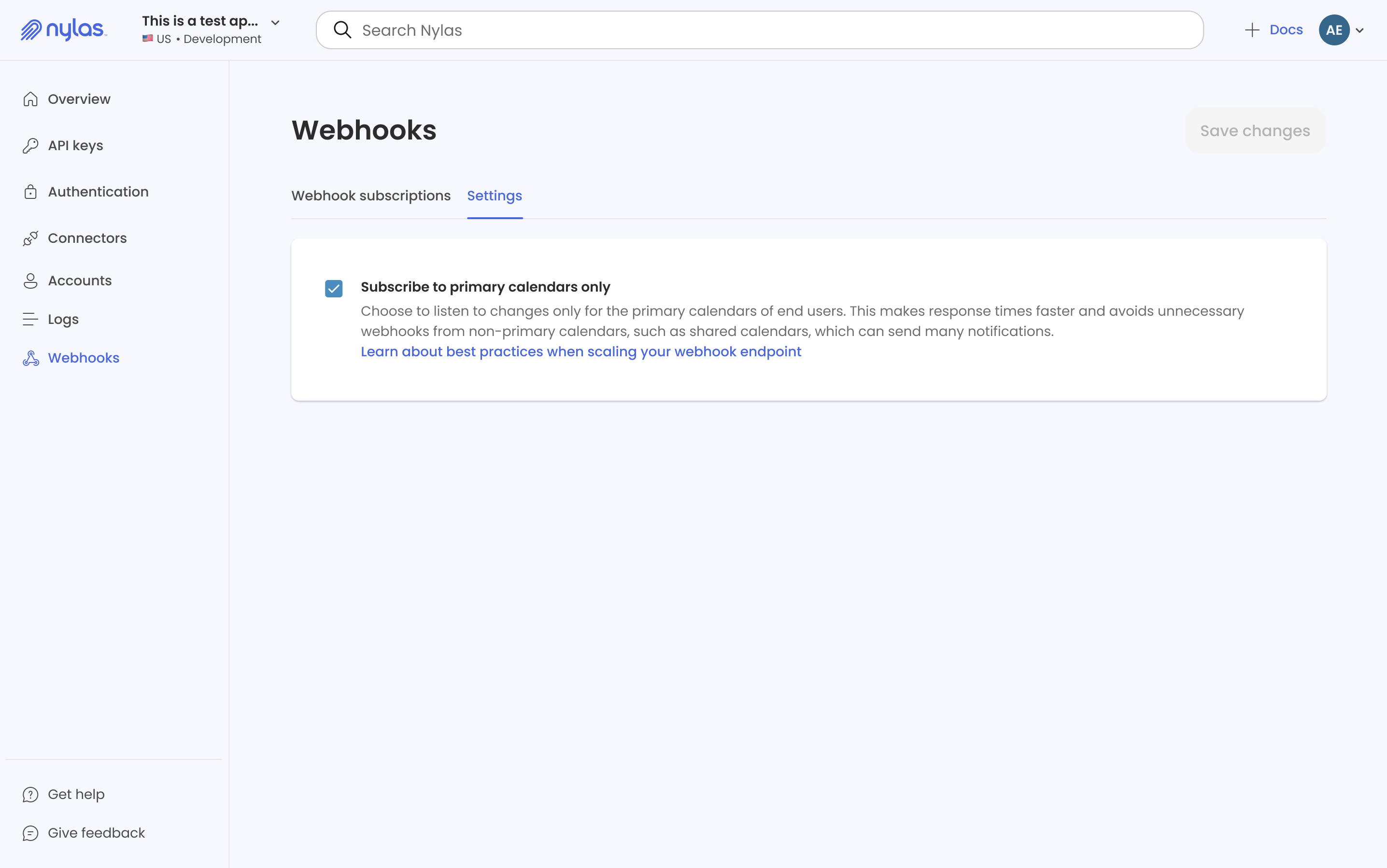
- Deselect the Subscribe to primary calendars only option and save your changes.
After you update this setting, you might need to wait a few minutes for your change to take effect.
Sync and notify for specific calendars
Section titled “Sync and notify for specific calendars”The synced-calendars grant setting is a list of up to 50 calendar IDs that Nylas syncs for one grant. It sends calendar.* and event.* webhook notifications only for the calendars on that list, so you can skip notifications for calendars your project never reads. You manage the list with the grant settings endpoints, using your API key.
To set the list, make a PUT /v3/grants/{grant_id}/settings/synced-calendars request with the calendar IDs in the synced-calendars field. The request creates the list or replaces the one that’s there, so retrying the same request is safe. For a full request and the notifications that follow it, see Limit notifications to specific calendars.
How synced-calendars works with “Subscribe to primary calendars only”
Section titled “How synced-calendars works with “Subscribe to primary calendars only””The Subscribe to primary calendars only setting in the Dashboard decides which calendars Nylas covers for grants that don’t have a list. When a grant has synced-calendars, the list overrides the Dashboard setting for that grant. The two settings aren’t combined, so a list that names only a secondary calendar still works when the Dashboard setting is on.
Grant has synced-calendars? | Calendars Nylas syncs and sends notifications for |
|---|---|
| Yes | Exactly the calendars on the list, which overrides the Dashboard setting. |
| No | The Subscribe to primary calendars only setting applies: the primary calendar if it’s on, or all calendars if it’s off. |
To return a grant to the Dashboard setting, delete the setting. The DELETE request returns 200 even if the grant had no list.
Things to know about synced calendars
Section titled “Things to know about synced calendars”- Use real calendar IDs, not
primary. Nylas checks every ID against the grant’s calendars before it saves the list, and returns a400error that names any ID it can’t find. Get the IDs from a Get all Calendars request. On Google, the primary calendar’s ID is usually the account’s email address. - Adding a calendar doesn’t backfill. When you add a calendar to the list, or add one back, Nylas picks up its changes from the grant’s next sync onward.
- Deleted calendars stay on the list. If the user deletes a calendar that’s on the list, its ID stays in
synced-calendars. Leave that ID out of your nextPUTrequest, because Nylas rejects IDs that aren’t on the grant. - Moving an event between calendars: When an event moves into a calendar on the list, Nylas sends
event.updatedwith the destinationcalendar_id. When it moves out of the list, Nylas sendsevent.deletedwith the sourcecalendar_id. - Calendars outside the list are still readable. The list only limits sync and notifications. You can still read those calendars and their events through the Calendar and Events APIs.
- An empty list isn’t allowed. A
PUTrequest with an emptysynced-calendarsarray returns a400error. Delete the setting instead.
Calendar limitations
Section titled “Calendar limitations”- When creating a calendar on Microsoft, you can define only its name.
- Similarly, you can update only the name of a Microsoft calendar.
More resources
Section titled “More resources”The Nylas Samples Github repository includes working example applications in several languages that use the Nylas Calendar API. The following examples are interesting places to start exploring: