You can manage availability in Scheduler by setting default open hours, participant-specific open hours, buffer times, and specific time availability for particular dates. This page explains how to configure each option.
How Scheduler calculates availability
Section titled “How Scheduler calculates availability”Scheduler applies these rules in order for each participant, then combines participants to produce the slots a guest sees.
How Scheduler works out bookable times
Diagram as text
- Guest: Opens the Scheduling Page: Scheduler looks for free times in the dates the guest is viewing. It never offers a time sooner than the minimum booking notice, so hosts aren't booked at the last minute.
- Settings: The earliest start is now plus
scheduler.min_booking_notice(default 60 minutes).
- Settings: The earliest start is now plus
- Nylas: Start from weekly working hours: Each participant's regular weekly hours set when they can meet. A participant's own hours replace the page's default hours completely; the two aren't merged. (For each participant)
- Settings: Participant hours:
availability.open_hours. Page defaults:availability_rules.default_open_hours. - Settings: Dates listed in
exdatesstay closed, even if a date-specific rule opens them. - Set to specific dates only (
only_specific_time_availability: trueon the configuration or participant) → Ignore weekly hours: Only hand-picked dates count. With no specific dates set, the participant has no free time.
- Settings: Participant hours:
- Nylas: Apply date-specific hours: Hours set for one particular date replace that day's weekly hours. Use this to open an extra day, change hours for one day, or close a day. A participant's own date settings win; the page's default dates fill in the rest. (Specific dates override weekly hours)
- Settings: Participant dates:
specific_time_availability. Page defaults:default_specific_time_availability. - Settings: Set
startandendto"00:00"to close a date.
- Settings: Participant dates:
- Nylas: Remove times they're already busy: Events on the participant's calendars block that time. Events marked as free, and events the participant declined, don't. (Then subtract)
- Settings: Calendars checked: the participant's
availability.calendar_ids.
- Settings: Calendars checked: the participant's
- Nylas: Add breathing room around busy events: A buffer is extra blocked time around each existing event, so meetings don't run back to back. Each busy event grows by the larger buffer on both sides. Buffers don't shorten the start or end of working hours.
- Settings: The larger of
buffer.beforeandbuffer.afterapplies to both sides.
- Settings: The larger of
- Nylas: Combine the participants: By default (collective), Scheduler offers a slot only when every participant is free. With round robin, it offers a slot when any one participant is free, and picks one of them to host.
- Settings: Collective:
collective(default). Round robin:max-fairnessormax-availability.
- Settings: Collective:
- Guest: Sees the times they can book: Each slot is as long as the meeting, and slots start at a regular interval that matches the meeting length unless you set a different one.
- Settings: Length:
duration_minutes. Interval:interval_minutes(defaults to the duration).
- Settings: Length:
How Scheduler applies timezones
Section titled “How Scheduler applies timezones”Scheduler uses IANA-formatted timezone strings, like America/Chicago, to interpret open hours and display booking times. Timezone fields are local to the object where you define them, but Scheduler also uses fallbacks when a more specific timezone isn’t set.
For availability calculations, Scheduler applies timezones in the following order.
| Scope | Applies to | Precedence and fallback |
|---|---|---|
participants[].availability.open_hours[].timezone | The specific participant open-hours block where you define it. | Highest precedence for that open-hours block. It overrides participants[].timezone. |
participants[].timezone | The participant’s availability and email notifications. | Used as the fallback for participant open_hours blocks that don’t include their own timezone. |
event_booking.timezone | The Scheduler configuration’s event display timezone, confirmation messages, reminders, and default open hours. | Used as the fallback when a participant doesn’t have a timezone. Scheduler also uses this timezone when evaluating availability_rules.default_open_hours. |
availability.availability_rules.default_open_hours[].timezone | The default open-hours block for participants that don’t define their own open_hours. | Used by the Calendar Availability API. In Scheduler configurations, set event_booking.timezone to control the timezone used for default open hours. |
If a participant defines participants[].availability.open_hours, those participant open hours replace availability.availability_rules.default_open_hours for that participant. The timezone on a participant open-hours block applies only to that block, not to other participants or other open-hours blocks.
Set default open hours
Section titled “Set default open hours”Default open hours allow you to define standard working hours for your team at the Configuration level. You can override these settings on a per-participant level as needed.
To set default open hours using the Scheduler API, make a Create Configuration or Update Configuration request that defines the default_open_hours and event_booking.timezone. The following example sets the default open hours to between 9:00a.m. and 5:00p.m. in the Chicago timezone, Monday through Friday.
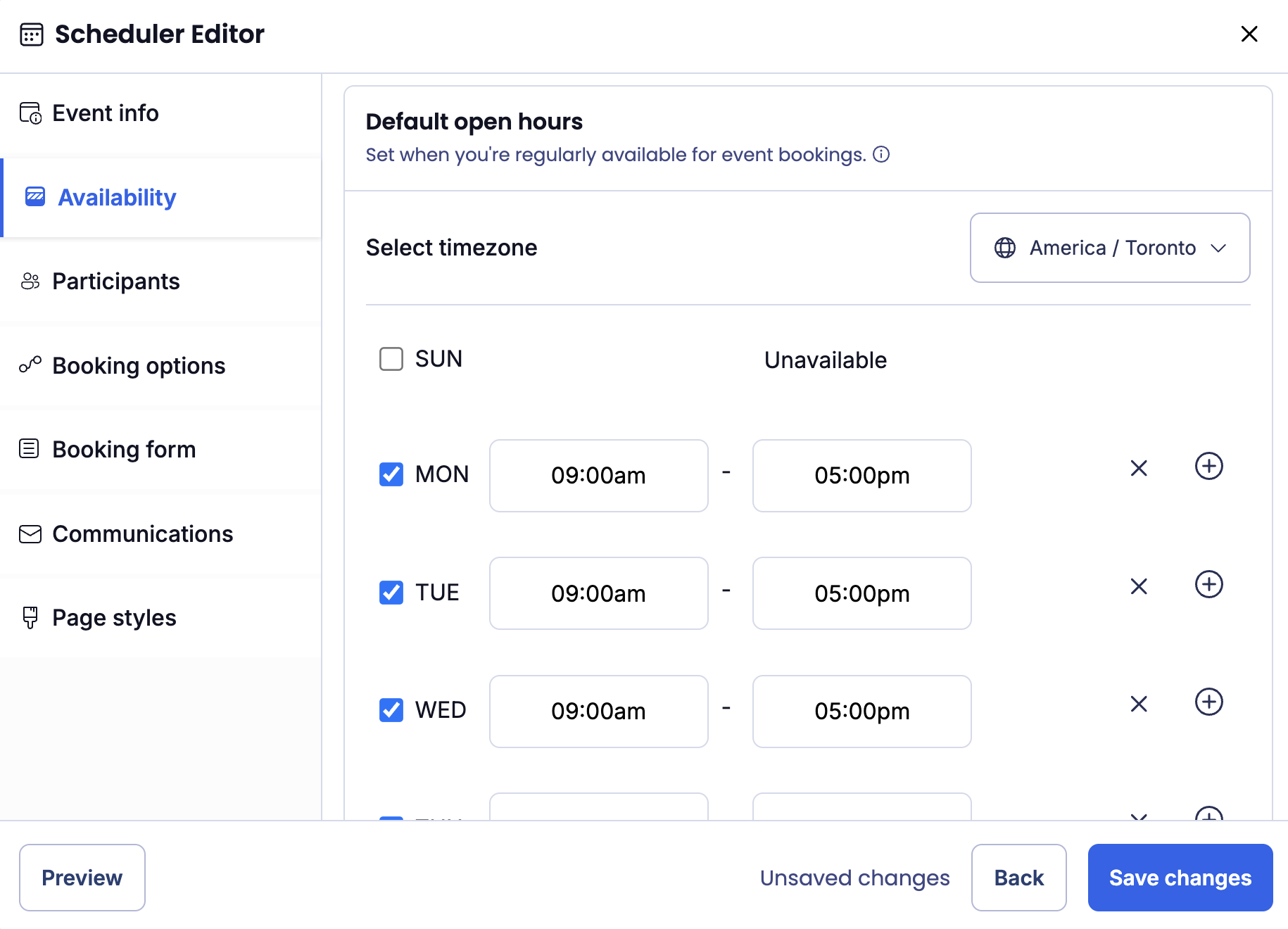
curl --request PUT \ --url "https://api.us.nylas.com/v3/grants/<NYLAS_GRANT_ID>/scheduling/configurations/<CONFIGURATION_ID>" \ --header 'Accept: application/json' \ --header 'Authorization: Bearer <NYLAS_API_KEY>' \ --header 'Content-Type: application/json' \ --data '{ "availability": { "availability_rules": { "default_open_hours": [{ "days": [1, 2, 3, 4, 5], "timezone": "America/Chicago", "start": "9:00", "end": "17:00" }] } }, "event_booking": { "title": "Consultation", "timezone": "America/Chicago" } }'If you’re using the Scheduler Editor, it renders the default open hours picker in the Availability tab. Under Default open hours, select the timezone and set the available hours. When you’re done, be sure to save your changes.
Set participant open hours
Section titled “Set participant open hours”You can use participant open hours to override Configuration-level open hours settings on a per-participant basis. This is useful when a participant’s working hours differ from their team’s default, for example.
If you’re using the Scheduler API, make a Create Configuration or Update Configuration request and set the open_hours for each participant’s availability. The following example sets a participant’s open_hours to between 10:00a.m. and 6:00p.m. in the Toronto timezone, on Monday, Tuesday, and Wednesday only. It also excludes August 15th, 2025 because the participant isn’t available that day.
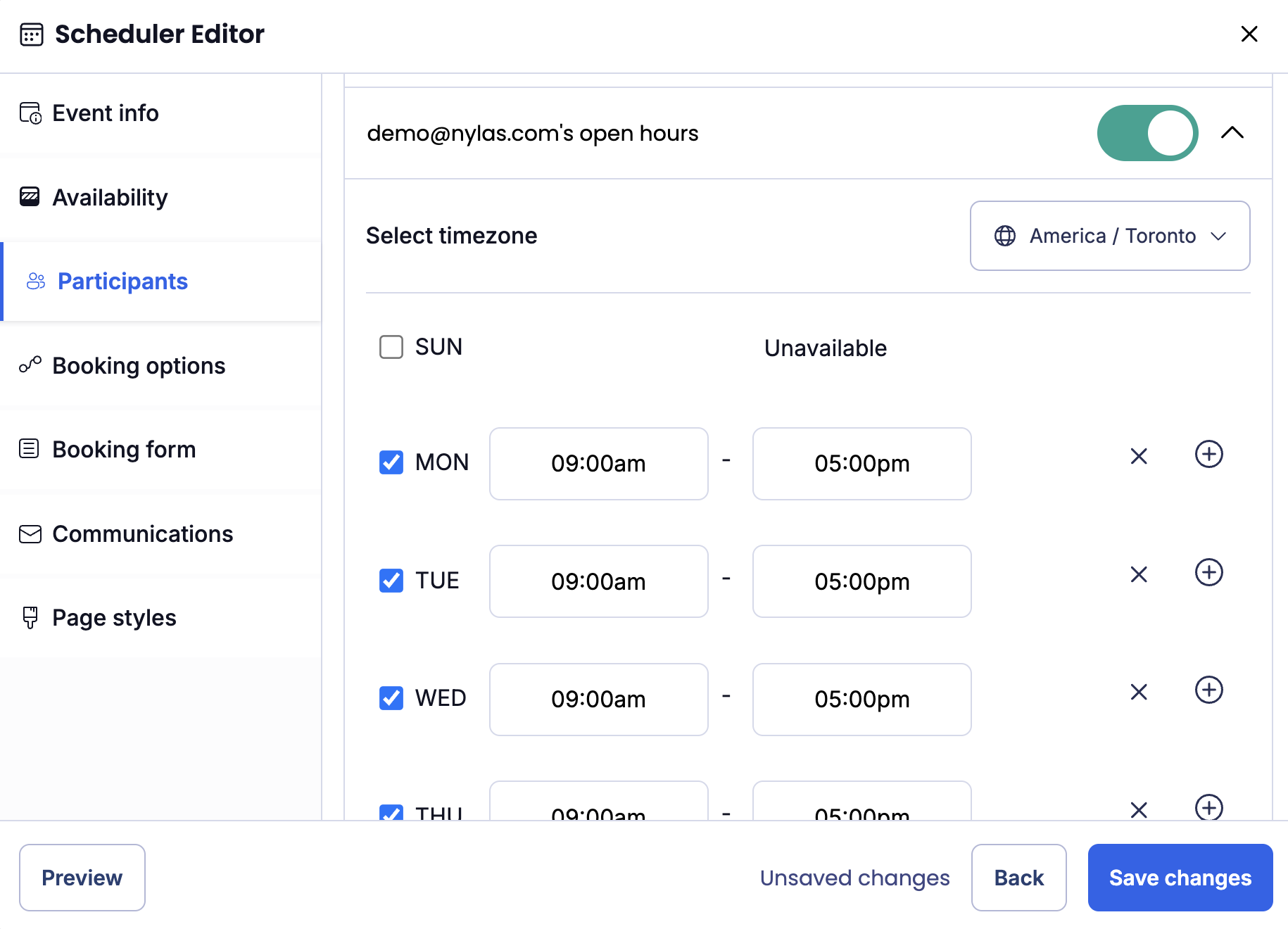
curl --request PUT \ --url "https://api.us.nylas.com/v3/grants/<NYLAS_GRANT_ID>/scheduling/configurations/<SCHEDULER_CONFIGURATION_ID>" \ --header 'Accept: application/json' \ --header 'Authorization: Bearer <NYLAS_API_KEY>' \ --header 'Content-Type: application/json' \ --data '{ "participants": [{ "name": "Leyah Miller", "email": "[email protected]", "is_organizer": false, "availability": { "calendar_ids": [ "en.usa#[email protected]" ], "open_hours": [{ "days": [1, 2, 3], "timezone": "America/Toronto", "start": "10:00", "end": "18:00", "exdates": ["2025-08-15"] }] }, "booking": { "calendar_id": "[email protected]" } }] }'You can update a participant’s open hours in the Scheduler Editor by navigating to the Participants tab. Under Participant open hours, select the users that you want to set availability for. Select the timezone and available hours for each person, then save your changes.
Add buffer times to meetings
Section titled “Add buffer times to meetings”Nylas Scheduler allows you to add buffer times which ensure there’s space before or after a meeting. This avoids back-to-back meetings and gives participants time to prepare and recover.
You can add buffer times to meetings by including the buffer object in your Create Configuration or Update Configuration request. Specify the number of minutes before and after a meeting using before and after, respectively. The values can be from 0 - 120 minutes and in increments of five minutes. Scheduler pads each existing busy event by the larger of the two values, on both sides. Buffers don’t apply at the start or end of open hours.
curl --request POST \ --url "https://api.us.nylas.com/v3/grants/<NYLAS_GRANT_ID>/scheduling/configurations" \ --header 'Accept: application/json' \ --header 'Authorization: Bearer <NYLAS_API_KEY>' \ --header 'Content-Type: application/json' \ --data '{ "requires_session_auth": false, "participants": [{ "name": "Nyla", "email": "[email protected]", "is_organizer": true, "availability": { "calendar_ids": ["primary"] }, "booking": { "calendar_id": "primary" } }], "availability": { "duration_minutes": 30, "availability_rules": { "availability_method": "collective", "buffer": { "after": 15, "before": 5 } } }, "event_booking": { "title": "Testing Scheduler" } }'If you’re using the Scheduler Editor, the nylas-buffer-time element is automatically included in the main NylasSchedulerEditor component. Organizers can set buffer times by navigating to the Availability tab and configuring the buffer time settings.
Set specific time availability
Section titled “Set specific time availability”Specific time availability settings let you define one-off availability windows on particular dates (for example, holidays or extended hours) without changing your regular open hours. These settings temporarily override existing availability rules and expire after the date passes, so users can’t book outdated time slots.
Set specific time availability for a participant
Section titled “Set specific time availability for a participant”If you’re using the Scheduler API, make a Create Configuration or Update Configuration request and set specific_time_availability on the participant.
curl --request PUT \ --url "https://api.us.nylas.com/v3/grants/<NYLAS_GRANT_ID>/scheduling/configurations/<CONFIGURATION_ID>" \ --header 'Accept: application/json' \ --header 'Authorization: Bearer <NYLAS_API_KEY>' \ --header 'Content-Type: application/json' \ --data '{ "participants": [{ "email": "[email protected]", "is_organizer": true, "specific_time_availability": [ { "date": "2025-08-21", "start": "09:00", "end": "13:00" }, { "date": "2025-08-22", "start": "10:00", "end": "16:00" } ], "availability": { "calendar_ids": ["primary"] }, "booking": { "calendar_id": "primary" } }] }'Set default specific time availability for all participants
Section titled “Set default specific time availability for all participants”You can define specific dates that apply to all participants using default_specific_time_availability in the availability_rules object. This is useful for organization-wide events like holidays or special booking periods.
Participant-specific entries override config-level defaults for the same date.
curl --request PUT \ --url "https://api.us.nylas.com/v3/grants/<NYLAS_GRANT_ID>/scheduling/configurations/<CONFIGURATION_ID>" \ --header 'Accept: application/json' \ --header 'Authorization: Bearer <NYLAS_API_KEY>' \ --header 'Content-Type: application/json' \ --data '{ "availability": { "duration_minutes": 30, "availability_rules": { "default_specific_time_availability": [ { "date": "2025-12-24", "start": "09:00", "end": "12:00", "timezone": "America/Toronto" }, { "date": "2025-12-31", "start": "10:00", "end": "14:00", "timezone": "America/Toronto" } ] } }, "event_booking": { "title": "Holiday Meeting", "timezone": "America/Toronto" } }'Use only specific time availability
Section titled “Use only specific time availability”When you want participants to only be available at specific times (ignoring their regular open hours), set only_specific_time_availability to true.
This is useful for:
- Temporary booking windows - Only allow bookings during a specific event or period
- Disabling availability - Set to
truewith no specific dates to temporarily block all bookings
At the participant level
Section titled “At the participant level”curl --request PUT \ --url "https://api.us.nylas.com/v3/grants/<NYLAS_GRANT_ID>/scheduling/configurations/<CONFIGURATION_ID>" \ --header 'Authorization: Bearer <NYLAS_API_KEY>' \ --header 'Content-Type: application/json' \ --data '{ "participants": [{ "email": "[email protected]", "is_organizer": true, "only_specific_time_availability": true, "specific_time_availability": [ { "date": "2025-09-15", "start": "14:00", "end": "18:00" } ], "availability": { "calendar_ids": ["primary"], "open_hours": [{ "days": [1,2,3,4,5], "start": "09:00", "end": "17:00", "timezone": "UTC" }] }, "booking": { "calendar_id": "primary" } }] }'In this example, even though open_hours defines Mon-Fri 9am-5pm, the participant is only available on September 15th from 2pm-6pm because only_specific_time_availability is true.
At the configuration level
Section titled “At the configuration level”Setting only_specific_time_availability at the availability_rules level applies to all participants and cannot be overridden by individual participants.
curl --request PUT \ --url "https://api.us.nylas.com/v3/grants/<NYLAS_GRANT_ID>/scheduling/configurations/<CONFIGURATION_ID>" \ --header 'Authorization: Bearer <NYLAS_API_KEY>' \ --header 'Content-Type: application/json' \ --data '{ "availability": { "duration_minutes": 30, "availability_rules": { "only_specific_time_availability": true, "default_specific_time_availability": [ { "date": "2025-09-15", "start": "09:00", "end": "17:00", "timezone": "America/Toronto" } ] } }, "event_booking": { "title": "Special Event Booking", "timezone": "America/Toronto" } }'Mark specific dates as unavailable
Section titled “Mark specific dates as unavailable”To explicitly mark a date as having no availability (closed), set both start and end to "00:00":
{ "specific_time_availability": [ { "date": "2025-12-25", "start": "00:00", "end": "00:00" } ]}This is useful when you want to override config-level defaults to close a specific participant’s availability on a particular date.
Specific time availability reference
Section titled “Specific time availability reference”| Field | Type | Required | Description |
|---|---|---|---|
date | string | Yes | Date in YYYY-MM-DD format |
start | string | Yes | Start time in HH:MM (24-hour). Use “00:00” with end “00:00” for closed. |
end | string | Yes | End time in HH:MM (24-hour) |
timezone | string | No | IANA timezone. Required for default_specific_time_availability. |
How merging works
Section titled “How merging works”When both config-level default_specific_time_availability and participant-level specific_time_availability are defined:
- Participant-specific entries take precedence for the same date
- Config defaults are added for dates not specified by the participant
- The effective
only_specific_time_availabilityistrueif EITHER config OR participant level istrue
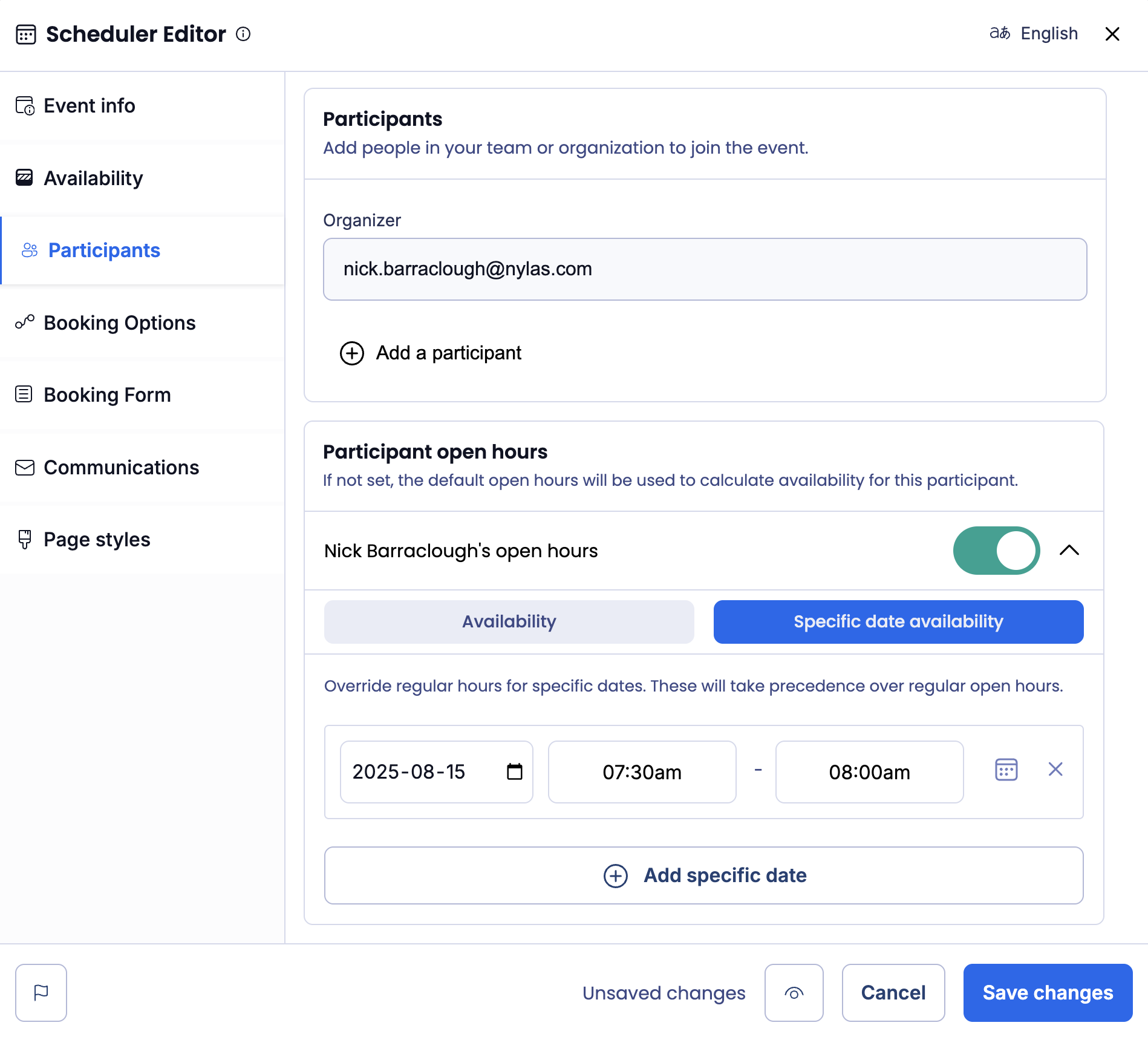
If you’re using the Scheduler Editor, it displays specific time availability settings in the Participants tab. Scroll down to the participant whose availability you want to modify and click Specific date availability > Add specific date, then set the date and time you want to create an availability window during. When you’re done, save your changes. Since @nylas/web-elements 2.5.15, the editor lists specific date entries in chronological order (by date, then start time), no matter what order you added them in.