The Scheduler Configuration API supports automatic Notetaker (meeting bot) integration. Notetaker is disabled by default. When enabled, bookings automatically create a Notetaker bot that joins the meeting to record, transcribe, and generate summaries and action items.
How it works
Section titled “How it works”When you enable Notetaker for a Scheduler Configuration, each booking creates a calendar event with a meeting link and a Notetaker scheduled to join it. If the booking is rescheduled, the Notetaker joins at the new time.
How a booking gets a Notetaker
Diagram as text
- Your app: Turn on Notetaker for the Scheduling Page: You switch on Notetaker in the page's settings, give the bot a display name, and choose what it records. Do it in the Scheduler Editor (Event info tab, Enable Notetaker for this event) or through the API.
- Request details: Set
scheduler.notetaker_settingson the configuration withenabled: true,notetaker_name, andmeeting_settings. - No video meeting set up, or a Notetaker setting missing → Settings rejected: The bot needs a video meeting to join. Add conferencing (
event_booking.conferencing) and send all three Notetaker fields.
- Request details: Set
- Guest: Books a time: By default, the booking form tells the guest the call will be recorded, so they know before they book.
- Settings: Controlled by
show_ui_consent_message(defaulttrue).
- Settings: Controlled by
- Nylas: Creates the meeting with a video link: Nylas adds the event to the organizer's calendar with a video meeting link, and attaches the Notetaker settings to it. If the organizer has to approve bookings, this happens when they confirm.
- Video link can't be created → Meeting booked without a Notetaker: Nylas still books the event, but without a video link, so no bot joins.
- Nylas: Schedules the Notetaker to join: Nylas lines up the bot to join at the meeting's start time and notifies your app. If someone reschedules the booking, the bot's join time moves with it and your app gets an update. (Notetaker created (
notetaker.created))- Webhook: A reschedule sends
notetaker.updated.
- Webhook: A reschedule sends
- Notetaker: Joins and records the call: At the start time, the bot joins the call, posts a recording notice in the meeting chat, and records and transcribes as the settings say. (Meeting state changes (
notetaker.meeting_state))- Settings: What it records and transcribes comes from
meeting_settings.
- Settings: What it records and transcribes comes from
- Your app: Downloads the recording and transcript: When the files are ready, your app gets links to download the recording, the transcript, and any summary or action items. (Media ready (
notetaker.media,available))
After the bot is scheduled, it moves through the same states and webhook notifications as any other Notetaker. See how Notetaker works for the full bot lifecycle.
Prerequisites
Section titled “Prerequisites”Before you can enable Notetaker for Scheduler bookings:
- Conferencing must be configured - Your Configuration must include
event_booking.conferencingwith a supported provider - Supported providers: Google Meet, Microsoft Teams, or Zoom
- Valid grant - The grant associated with your Configuration must have the necessary permissions
For more information about setting up conferencing, see Adding conferencing to bookings.
Enable Notetaker using the Scheduler API
Section titled “Enable Notetaker using the Scheduler API”To enable Notetaker, set scheduler.notetaker_settings.enabled to true, along with notetaker_name and meeting_settings, when you make a Create Configuration or Update Configuration request.
When you enable Notetaker via the API, users can configure their settings in the Scheduler Editor UI.
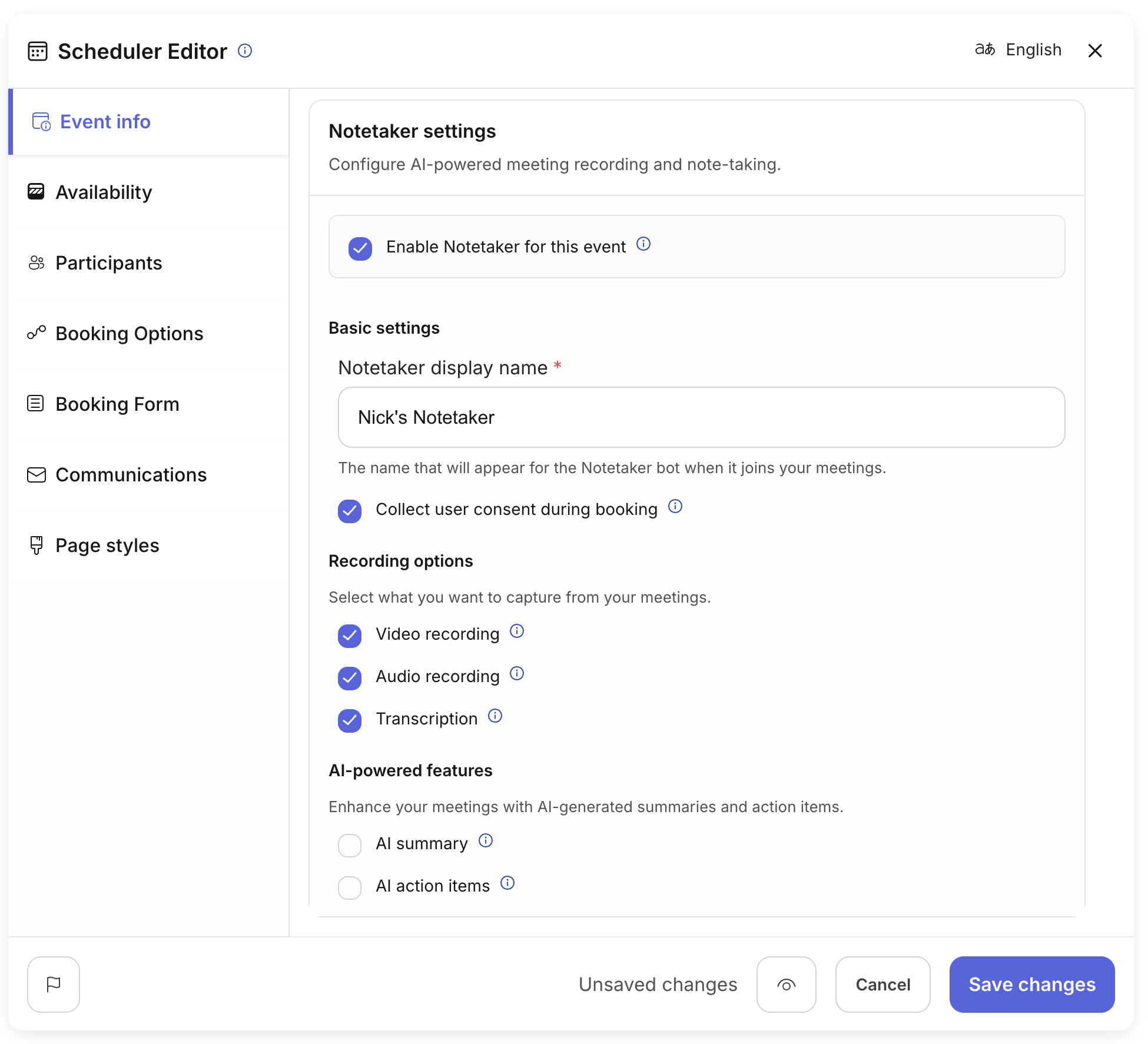
You can also set default values through the API that will be used for all bookings.
curl --request PUT \ --url "https://api.us.nylas.com/v3/grants/<NYLAS_GRANT_ID>/scheduling/configurations/<SCHEDULER_CONFIGURATION_ID>" \ --header 'Accept: application/json' \ --header 'Authorization: Bearer <NYLAS_API_KEY>' \ --header 'Content-Type: application/json' \ --data '{ "scheduler": { "notetaker_settings": { "enabled": true, "show_ui_consent_message": true, "notetaker_name": "Meeting Recording Bot", "meeting_settings": { "video_recording": true, "audio_recording": true, "transcription": true } } } }'Nylas replaces the whole notetaker_settings object on update, so include every field you want to keep.
Show Notetaker settings in the Scheduler Editor
Section titled “Show Notetaker settings in the Scheduler Editor”The Scheduler Editor Component hides its Notetaker settings unless you set the enableNotetaker prop to true. It defaults to false and requires @nylas/web-elements 2.3.0 or later. When it’s enabled, the Event Info tab shows the Notetaker configuration shown above. Organizers can turn Notetaker on and choose summaries, action items, recording, and transcription for each Scheduling Page.
Set the prop on the component, or the enable-notetaker attribute in HTML. Your Configuration still needs event_booking.conferencing with a supported provider, because Notetaker joins through the meeting link.
<html>  <body>    <nylas-scheduler-editor enable-notetaker="true" />
    <script type="module">      import { defineCustomElement } from "https://cdn.jsdelivr.net/npm/@nylas/web-elements@latest/dist/cdn/nylas-scheduler-editor/nylas-scheduler-editor.es.js";
defineCustomElement(); </script> </body></html><NylasSchedulerEditor enableNotetaker={true} />;Configure recording and transcription settings
Section titled “Configure recording and transcription settings”You can customize what Notetaker records and generates by specifying meeting_settings:
curl --request PUT \ --url "https://api.us.nylas.com/v3/grants/<NYLAS_GRANT_ID>/scheduling/configurations/<SCHEDULER_CONFIGURATION_ID>" \ --header 'Accept: application/json' \ --header 'Authorization: Bearer <NYLAS_API_KEY>' \ --header 'Content-Type: application/json' \ --data '{ "scheduler": { "notetaker_settings": { "enabled": true, "meeting_settings": { "video_recording": true, "audio_recording": true, "transcription": true, "transcription_settings": { "expected_languages": ["en", "es"], "fallback_language": "en" }, "summary": true, "summary_settings": { "custom_instructions": "Focus on key decisions and next steps." }, "action_items": true, "action_items_settings": { "custom_instructions": "List the top 5 action items with owners." } } } } }'Notetaker settings reference
Section titled “Notetaker settings reference”| Field | Type | Default | Description |
|---|---|---|---|
enabled | boolean | false | When true, automatically creates a Notetaker bot for bookings. |
show_ui_consent_message | boolean | true | When true, shows a recording consent message to guests in the Scheduler UI. |
notetaker_name | string | None | Display name for the bot (max 255 characters). Required when enabled is true. |
meeting_settings | object | None | Configuration for recording, transcription, and AI features. Required when enabled is true. |
Meeting settings reference
Section titled “Meeting settings reference”| Field | Type | Default | Description |
|---|---|---|---|
video_recording | boolean | true | Records the meeting video. |
audio_recording | boolean | true | Records the meeting audio. Required for transcription. |
transcription | boolean | true | Transcribes the meeting audio. Requires audio_recording. |
transcription_settings | object | — | Optional language and keyword hints for transcription. See Set transcription languages. |
summary | boolean | false | Generates an AI summary. Requires transcription. |
summary_settings.custom_instructions | string | — | Custom prompt for summary generation (max 1500 chars). |
action_items | boolean | false | Extracts action items. Requires transcription. |
action_items_settings.custom_instructions | string | — | Custom prompt for action items (max 1500 chars). |
leave_after_silence_seconds | integer | — | Bot leaves after this many seconds of silence (10-3600). |
Feature dependencies
Section titled “Feature dependencies”Some features require others to be enabled:
- transcription requires audio_recording
- summary requires transcription
- action_items requires transcription
When you enable features that depend on others, Nylas automatically enables the required features. For example, if you set summary: true, Nylas automatically enables video_recording, audio_recording, and transcription.
Consent and notifications
Section titled “Consent and notifications”The consent messaging feature is optional and doesn’t need to be configured. You can hide the consent message option by setting show_ui_consent_message to false. When show_ui_consent_message is true, the Scheduler UI displays a message to guests informing them that the meeting will be recorded. The Notetaker bot also sends a message through the meeting provider’s messaging function a few minutes after joining to inform attendees about recording.
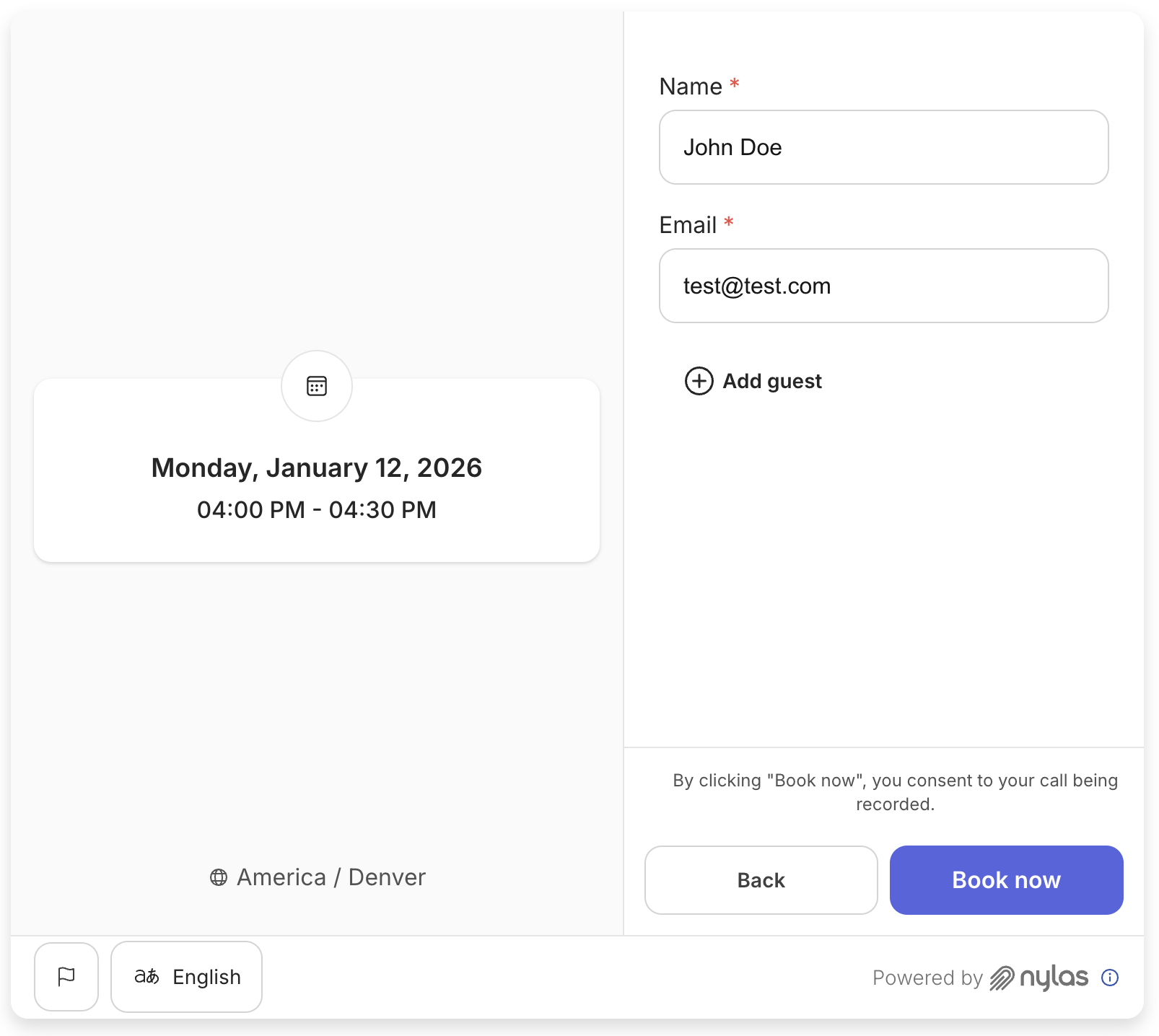
Nylas sends webhook notifications about Notetaker bots, including when they join calls and when recordings are available. For more information about handling Notetaker media files, see Handling Notetaker media files.
Keep in mind
Section titled “Keep in mind”- Notetaker integration requires conferencing to be configured for your Configuration
- The Notetaker bot joins the meeting at the scheduled start time
- Recordings and transcripts are available through webhook notifications after the meeting ends
- You can customize the bot’s display name, but it must be 255 characters or less
- Custom instructions for summaries and action items are limited to 1500 characters each
For more information about Notetaker features and capabilities, see Using Nylas Notetaker.